MCP server · Email
EngageLab Email MCP server
Give your AI its own email address so it can send, read, and reply to messages for you.

This is a small helper that gives your AI assistant its own email mailbox. Once it is set up, your AI can send emails, check what came in, and reply inside the same conversation. It is handy if you want an assistant to handle simple email tasks like answering a support question or confirming an approval.
What is an MCP server? The 30-second version
On its own, your AI can only chat with you. An MCP server is a small helper program that gives your AI a new skill or a connection to an app. This one connects your AI to EngageLab Email, so it gets a real mailbox it can send from and read. When you ask it to do something with email, it uses this helper behind the scenes.
What this MCP server does
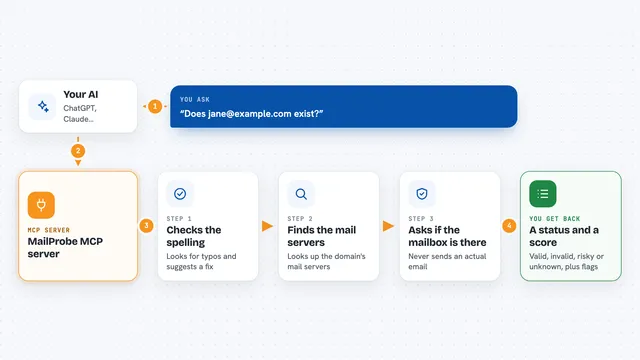
You ask your AI to do something with email, like send a message or check for new mail. Your AI passes that request to this helper program. The helper talks to EngageLab Email, which holds your agent's mailbox. Then it brings the result back, such as a list of new messages or a confirmation that your email was sent. You see the answer right in your chat.
 Click to zoom
What you can do with it
- Send a new email from your agent's mailbox
- Reply to a message so it stays in the same conversation
- Check for new incoming mail
- Read the full text of a message, including attachments
- Browse a whole email thread to see the history
- List the mailboxes your account has
- Test flows in sandbox mode without emailing real people
Try asking your AI
- “List my mailboxes, then send an email from the first one to bob@example.com saying the invoice is approved.”
- “Check for new messages and tell me what came in.”
- “Read the latest message and reply that we will look into it today.”
- “Show me the full thread for that support question.”
What it gives back to you
You get back plain answers in the chat, like a list of new messages with their senders and subjects, or the full text of one email. When it sends or replies, it tells you it went through. It can also show you a whole conversation thread so you can see the back and forth.
Before you start
What you need
- An EngageLab account with a Secret Key (a kind of password for apps, starting with sk_)
- A mailbox created for your agent in the EngageLab console
- Node.js installed on your computer
- An MCP-compatible app like Claude Desktop or Claude Code
Good to know
Your AI can send real emails and read your mailbox, so double-check what it is about to send before it goes out.
Install it with your AI
Add EngageLab Email MCP server to your AI, no technical skills needed
You don't install anything by hand. You copy one prompt, paste it into an AI that can work on your computer, and it checks, installs and connects the server for you, asking you when it needs something.
Sign in to get the install prompt
Members get a ready-made prompt that lets the Claude desktop app check EngageLab Email MCP server, install it and connect it for them, step by step. You don't need any technical skills: you copy, paste and answer a few questions. Your connected AI can also find and install any of the 4,361 MCP servers here for you.
Who it's for
Anyone who wants an AI assistant to handle simple email tasks, like support teams, small businesses, or people managing scheduling and approvals.