MCP server · Productivity
pdfmux MCP server
by NameetP
Turn PDFs into clean text your AI can read, and check which pages an extractor quietly skipped.

pdfmux is a helper that reads PDF files and turns them into text your AI can actually use. It also checks its own work, so if a page comes out blank or scrambled, it tries again with a different method instead of quietly losing that page. It is handy for anyone who deals with lots of PDFs, like reports, invoices or scanned documents.
What is an MCP server? The 30-second version
On its own, your AI can only chat with you. An MCP server is a small helper program that gives your AI a new skill or a connection to another tool. This one connects your AI to pdfmux, which knows how to read PDF files. So when you ask your AI about a PDF, it can pass the file to pdfmux and get real text back instead of guessing.
What this MCP server does
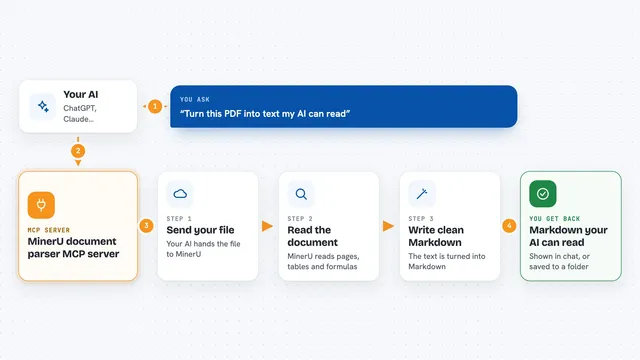
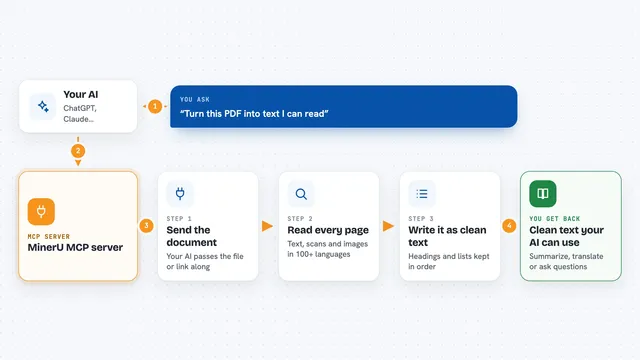
You ask your AI something about a PDF, like to pull out the text or check a document. Your AI sends the file to pdfmux through this helper. pdfmux looks at each page, picks the reading method that fits best, and checks whether the result looks right. If a page looks bad, it tries again with a stronger method. Then it hands the clean text back to your AI, along with a confidence score so you know how much to trust it.
 Click to zoom
What you can do with it
- Turn a PDF into clean Markdown text
- Extract text from scanned pages using OCR
- Split a long PDF into smaller chunks for your AI
- Pull structured data out of invoices or receipts
- Check which pages an extractor silently skipped
- Compare two extractions of the same document
- Get a confidence score for each page
Try asking your AI
- “Read this PDF and give me the main points”
- “Extract the table on page 3 of report.pdf as text”
- “Turn this scanned invoice into structured data”
- “Check whether this extractor dropped any pages from my PDF”
What it gives back to you
You get back the text of the PDF, usually as Markdown or as a structured list of fields. You also get a confidence score for the document and, if any pages looked bad, a note about which ones. In the chat, this shows up as readable text or a small table you can copy. If you asked it to check another tool's work, it tells you which pages were silently dropped.
Before you start
What you need
- Python 3.11 or newer installed on your computer
- The pdfmux package installed (pip install pdfmux)
- The OCR extra for scanned PDFs (pip install pdfmux[ocr])
- An API key only if you want to use a paid LLM fallback (optional)
Good to know
Reading a PDF is safe, but if you point it at private or confidential documents, remember the text is passed to your AI, so treat it like sharing the file with your assistant.
Install it with your AI
Add pdfmux MCP server to your AI, no technical skills needed
You don't install anything by hand. You copy one prompt, paste it into an AI that can work on your computer, and it checks, installs and connects the server for you, asking you when it needs something.
Sign in to get the install prompt
Members get a ready-made prompt that lets the Claude desktop app check pdfmux MCP server, install it and connect it for them, step by step. You don't need any technical skills: you copy, paste and answer a few questions. Your connected AI can also find and install any of the 4,361 MCP servers here for you.
Who it's for
Anyone who works with lots of PDFs and wants their AI to read them properly, like analysts, researchers, accountants or operations staff.