MCP server · Productivity
Taiga MCP server
by negoro26
Lets your AI read and update your Taiga projects, stories, tasks, sprints, comments and wiki pages.

This is a small helper that connects your AI assistant to Taiga, the project management tool. Once it is set up, you can ask your AI about your projects and it can look things up or make changes for you. It is handy if you already use Taiga for your team's work and want to skip a lot of clicking.
What is an MCP server? The 30-second version
On its own, your AI can only chat with you. An MCP server is a small helper program that gives your AI a new skill or a connection to an app. This helper connects your AI to Taiga, so when you ask about a project or a task, the AI can go and check Taiga for you. You stay in the chat, and the AI does the looking up and the typing.
What this MCP server does
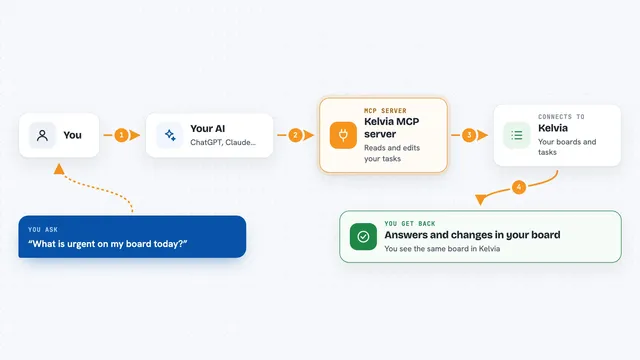
You ask your AI something about your Taiga work, like what is in a sprint or what a task says. The AI passes your request to this helper. The helper signs in to Taiga with your account and asks Taiga for the information, or makes the change you asked for. Then the AI tells you the answer back in the chat, in plain words. You never have to open Taiga yourself unless you want to.
 Click to zoom
What you can do with it
- List your Taiga projects and see which one is which
- Look up user stories, tasks, issues and epics in a project
- Create new work items or update the ones you already have
- See sprints and their stats, and create new sprints
- Add, edit or delete comments on a work item
- Upload, download or remove attachments on an item
- Read and update wiki pages in a project
What it gives back to you
You get answers in the chat: lists of projects, work items, sprints or wiki pages, and short summaries of what each one says. When you ask it to create or change something, it tells you what it did. If you download an attachment, you can have the file saved on your computer or just get its details.
Before you start
What you need
- Node.js 24 or newer on your computer
- A Taiga account on taiga.io or your own Taiga server
- Your Taiga username and password
- The address of your Taiga API if you use a self-hosted Taiga (it ends in /api/v1)
Good to know
It can create, change and delete things in your Taiga account, so check with your AI before letting it remove work items, comments, attachments or wiki pages.
Install it with your AI
Add Taiga MCP server to your AI, no technical skills needed
You don't install anything by hand. You copy one prompt, paste it into an AI that can work on your computer, and it checks, installs and connects the server for you, asking you when it needs something.
Sign in to get the install prompt
Members get a ready-made prompt that lets the Claude desktop app check Taiga MCP server, install it and connect it for them, step by step. You don't need any technical skills: you copy, paste and answer a few questions. Your connected AI can also find and install any of the 4,361 MCP servers here for you.
Who it's for
Project managers, team leads and developers who already use Taiga and want to ask their AI about their work instead of clicking around.