MCP server · Developer tools
Terminal App MCP server
by nvms
Let your AI open terminal apps, take screenshots, read their text, and send keystrokes for you.
This is a helper that lets your AI actually use terminal programs, the text-only apps that run in a black window on your computer. It can start one of those apps, look at what is on the screen, type into it, and wait for things to happen. It is handy if you or your team work with tools like vim, htop, or database command lines and want your AI to help drive them.
What is an MCP server? The 30-second version
On its own, your AI can only chat with you. An MCP server is a small helper program you connect to your AI that gives it one new skill. This helper gives your AI the skill of sitting at a terminal and using programs there, the same way a person would. So when you ask it to check something in a terminal app, it can actually open the app, look at it, and type for you.
What this MCP server does
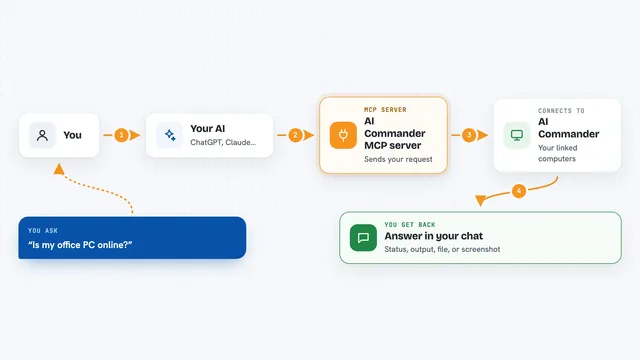
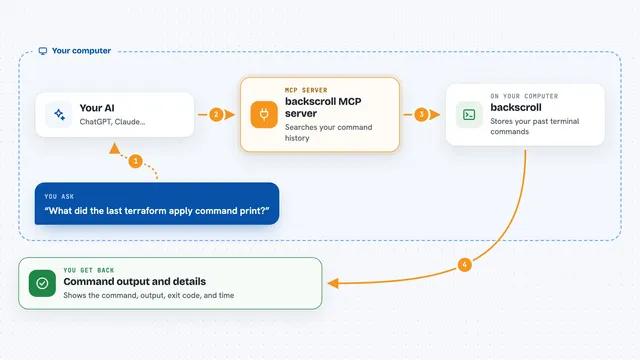
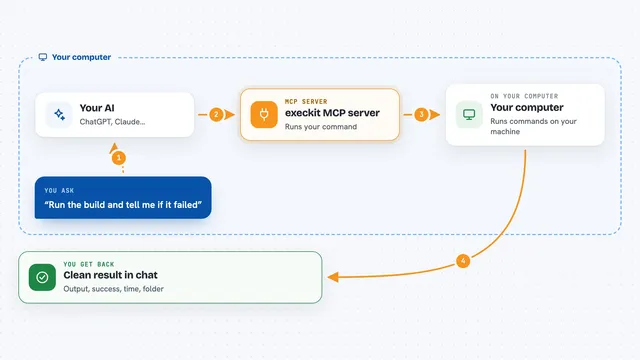
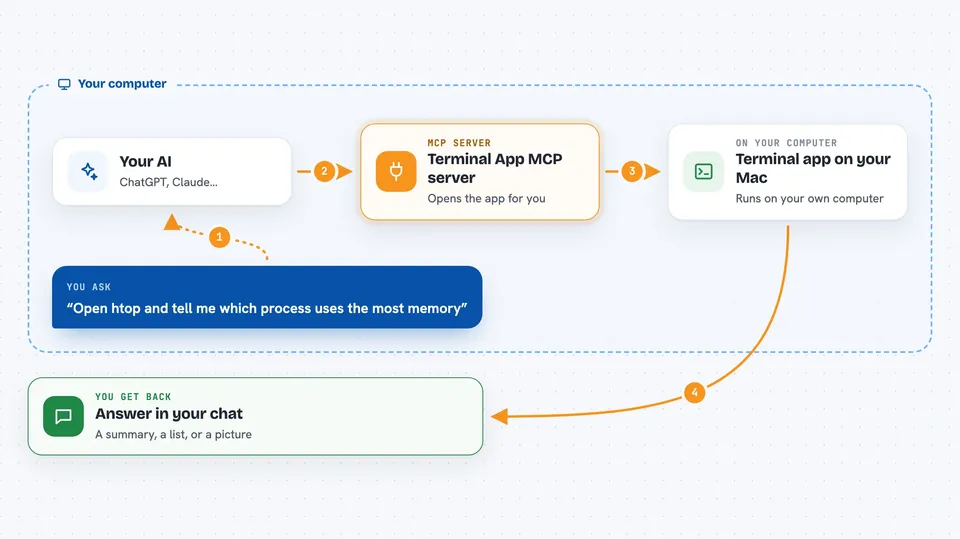
You ask your AI to do something that involves a terminal app, like open htop or start a database shell. The AI uses this helper to launch that app in a pretend terminal window that stays open in the background. The helper reads what the app shows on screen and turns it into readable text or a picture for the AI. The AI can then type keys, wait for things to appear, and check the screen again. When it is done, it tells you what it saw or did, right in the chat.
 Click to zoom
What you can do with it
- Open a terminal app like vim, htop, or a database shell
- Take a screenshot of what is on the terminal screen
- Read the text shown in the terminal, including history you have scrolled past
- Type text or send key presses like Enter, Ctrl+C, or arrow keys
- Wait until certain text appears or the screen stops changing
- Run several terminal sessions at the same time
- Close a session and check how it ended
Try asking your AI
- “Open htop and tell me which process is using the most memory”
- “Start a mysql shell, connect to my local database, and list the tables”
- “Launch vim on my notes file and add a line at the top”
- “Run a build in a terminal and let me know when it finishes or if it fails”
What it gives back to you
You get answers in the chat based on what the AI saw in the terminal. That can be a short summary, a list of items from the screen, or a picture of the terminal. If the AI typed something, it will tell you what it did and what happened next. It can also report the exit code, a number that says whether a program finished cleanly.
Before you start
What you need
- The Claude desktop app or another AI app that supports MCP servers
- Node.js installed on your computer (the helper runs through npx, which comes with Node.js)
Good to know
This helper can type into real terminal programs, so if you point it at something important like a production server or a database, it can change or delete things there.
Install it with your AI
Add Terminal App MCP server to your AI, no technical skills needed
You don't install anything by hand. You copy one prompt, paste it into an AI that can work on your computer, and it checks, installs and connects the server for you, asking you when it needs something.
Sign in to get the install prompt
Members get a ready-made prompt that lets the Claude desktop app check Terminal App MCP server, install it and connect it for them, step by step. You don't need any technical skills: you copy, paste and answer a few questions. Your connected AI can also find and install any of the 4,609 MCP servers here for you.
Who it's for
People who work with terminal tools like developers, system administrators, and anyone who runs command-line programs and wants an AI to help drive them.