MCP server · Email
Sendmux MCP server
by Sendmux
Let your AI read, search and send email from your Sendmux inboxes.
Sendmux gives you email inboxes that your AI assistant can actually use. This MCP server is the bridge between your AI and those inboxes, so it can check mail, search it and send replies for you. It is handy if you run an assistant that needs to handle email on your behalf.
What is an MCP server? The 30-second version
On its own, your AI can only chat. It cannot open your email or send anything. An MCP server is a small helper program that gives your AI a new skill, and here that skill is talking to Sendmux. Once it is connected, you can ask your AI about your mail in plain words and it will go and do it.
What this MCP server does
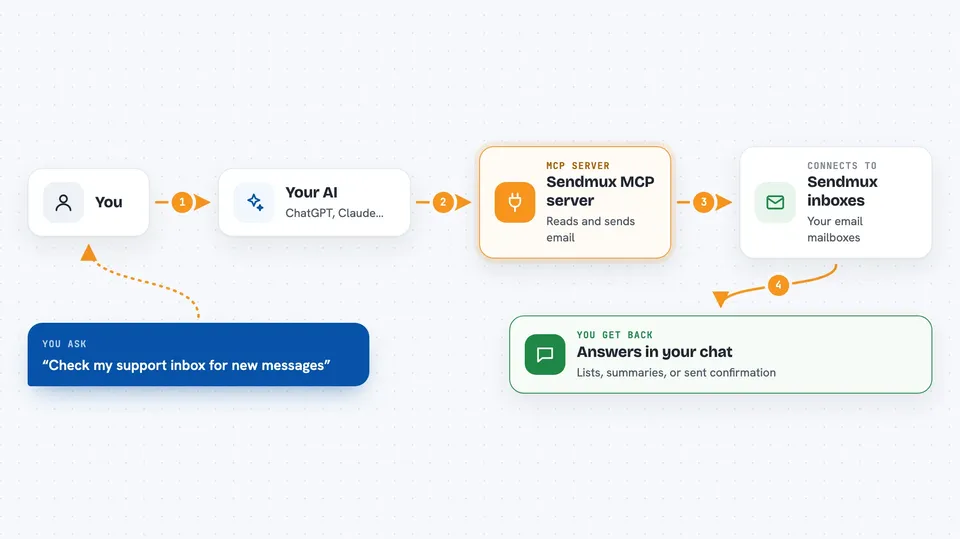
You ask your AI something about your email, like whether anything new came in. Your AI passes that request to this helper. The helper talks to Sendmux using your key, and Sendmux talks to the mailboxes you have set up. The answer comes back and your AI shows it to you in the chat, as a list, a summary or a confirmation that a message was sent.
 Click to zoom
What you can do with it
- Check a mailbox for new messages
- Search messages by keyword or sender
- Read a message and its attachments
- List threads, folders and message counts
- Wait briefly for a new message to arrive
- Send an email from a mailbox
- Send the same email to several people at once
Try asking your AI
- “Check my support inbox and tell me if anything new came in”
- “Search my inbox for messages from Acme about the invoice”
- “Read the latest message in my support inbox and summarise it”
- “Send a short reply to the last person who emailed me”
What it gives back to you
You get answers in the chat: lists of messages with sender, subject and date, short summaries, counts, or a confirmation that a message was sent. If a message has an attachment, your AI can show you the text inside it or give you a download link. For searches you get the matching messages, not the whole inbox.
Before you start
What you need
- Python 3.10 or newer
- A Sendmux account with at least one mailbox
- A Sendmux key that starts with smx_mbx_ (for mailboxes and sending) or smx_root_ (for management)
- An MCP client that can run a local command, such as the Claude desktop app
Good to know
It can send real email and read your inboxes, so only connect it with keys you are comfortable giving it, and check what your AI is about to send before it goes out.
Install it with your AI
Add Sendmux MCP server to your AI, no technical skills needed
You don't install anything by hand. You copy one prompt, paste it into an AI that can work on your computer, and it checks, installs and connects the server for you, asking you when it needs something.
Sign in to get the install prompt
Members get a ready-made prompt that lets the Claude desktop app check Sendmux MCP server, install it and connect it for them, step by step. You don't need any technical skills: you copy, paste and answer a few questions. Your connected AI can also find and install any of the 4,361 MCP servers here for you.
Who it's for
People who run an AI assistant and want it to handle everyday email, like support inboxes, shared mailboxes or simple outbound messages.