MCP server · Design tools
Revit Model MCP server
Lets your AI read a live Revit model and, if you allow it, make small changes like placing or moving elements.

This is a helper that connects your AI assistant to a running Autodesk Revit project. You can ask questions about the model in plain words, and the AI looks things up in Revit for you. It is handy for architects, BIM coordinators and anyone who reviews Revit models all day.
What is an MCP server? The 30-second version
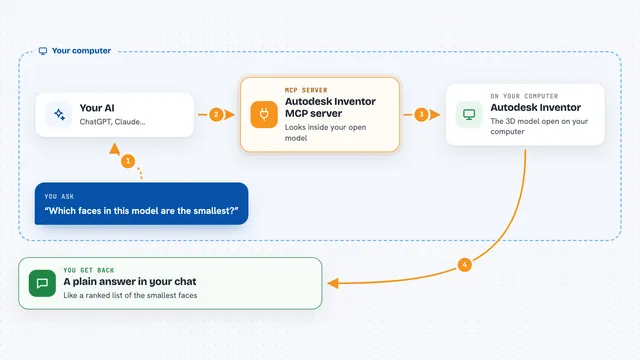
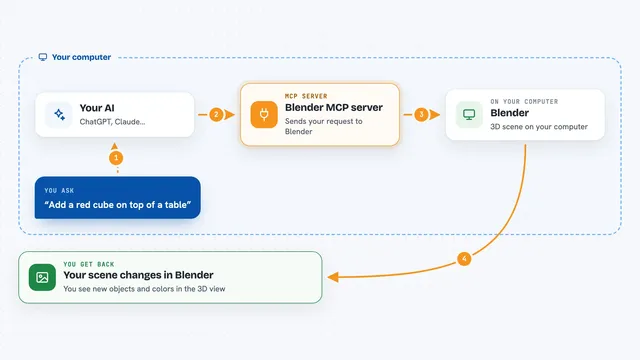
On its own, your AI can only chat. An MCP server is a small helper program that gives your AI a new skill or a connection to another app. This one connects your AI to Autodesk Revit, so it can look inside the model you have open and answer questions about it. When you ask something, the AI passes the request to this helper, and the helper talks to Revit.
What this MCP server does
You ask your AI a question about the Revit model, like which level has the most room area. The AI sends that request to this helper, which talks to the Revit project open on your Windows machine. Revit sends back the data, and the helper passes it to your AI. Your AI then explains the answer in the chat, or shows you the matching view. If you allow changes, it can also place or move elements, one small step at a time.
 Click to zoom
What you can do with it
- Ask what model is open and how many rooms or levels it has
- Find elements by category, level or parameter value
- Add up areas or counts across the whole model
- List warnings and check model health
- Open a view, isolate an element or export a view as a PNG
- Place a family or move an element, with a preview first
- Undo the last change the AI made in Revit
Try asking your AI
- “What model is open in Revit right now?”
- “Which level has the most room area? Find the largest room and show it to me.”
- “List the warnings in this model and group them by type.”
- “Export the current floor plan as a PNG so I can look at it.”
What it gives back to you
You get answers in plain chat text: lists of elements, counts, totals, warnings and short summaries. It can also open a view for you, select an element, or save a PNG picture of a view. If it changes the model, it tells you what it did and whether the change was verified.
Before you start
What you need
- Autodesk Revit installed on a Windows machine, with a model open
- The Revit Model MCP add-in installed on that Windows machine
- uv installed on the machine that runs your AI client
- Python 3.11 or newer
Good to know
The AI can change your Revit model by default, so turn on read-only mode if you only want it to look, and always check what it did before saving.
Install it with your AI
Add Revit Model MCP server to your AI, no technical skills needed
You don't install anything by hand. You copy one prompt, paste it into an AI that can work on your computer, and it checks, installs and connects the server for you, asking you when it needs something.
Sign in to get the install prompt
Members get a ready-made prompt that lets the Claude desktop app check Revit Model MCP server, install it and connect it for them, step by step. You don't need any technical skills: you copy, paste and answer a few questions. Your connected AI can also find and install any of the 4,361 MCP servers here for you.
Who it's for
Architects, BIM coordinators and Revit reviewers who want to ask questions about a model without clicking through every view.