
MCP server · Developer tools
smplkit MCP server
by smplkit
Lets your AI manage smplkit feature flags, config, logging, audit, and scheduled jobs right from chat.
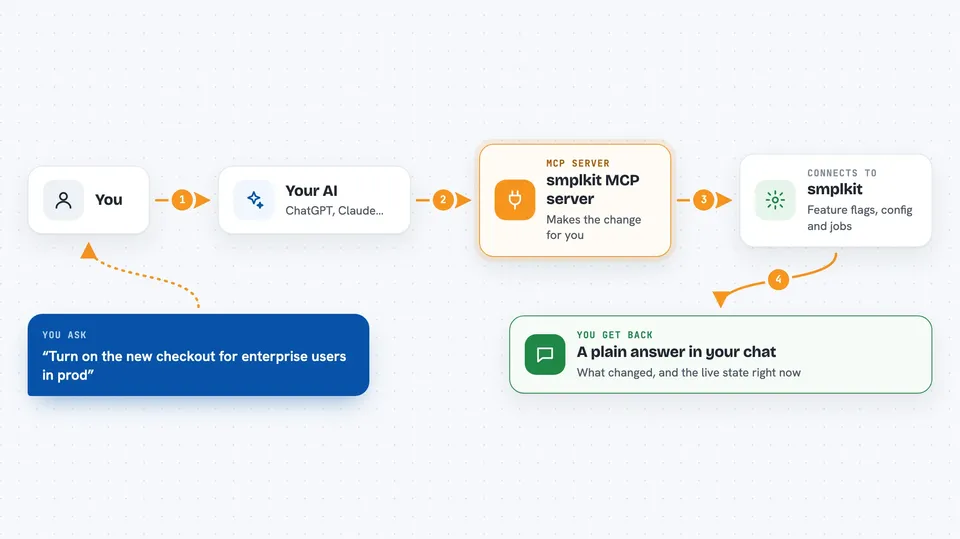
This is a helper that connects your AI assistant to smplkit, a service for controlling how your apps behave in different environments. Once it is set up, you can ask your AI in plain words to flip a feature flag, change a setting, or schedule a job, and it will do it for you. It is handy for developers and anyone who runs software and wants to make changes without clicking around a dashboard.
What is an MCP server? The 30-second version
On its own, your AI can only chat. An MCP server is a small helper program that gives your AI a new skill or a connection to an app or service. This one connects your AI to smplkit, so the AI can look things up and make changes there when you ask. You stay in the chat, and the AI handles the back and forth with smplkit for you.
What this MCP server does
You ask your AI something like turn on the new checkout for enterprise users in production. The AI uses this helper, which talks to the smplkit platform on your behalf. smplkit makes the change, and the helper sends the result back to your AI. Your AI then tells you what happened and can answer follow-up questions using the live state. It can also schedule jobs, change log levels, and search audit events the same way.
 Click to zoom
What you can do with it
- Turn feature flags on or off for specific environments and user groups
- Change configuration values like database hosts for staging or production
- Raise or lower log levels to debug an issue, then reset them
- Search the audit log and set up forwarders to send events to tools like Datadog
- Create scheduled jobs that call a web address on a cron schedule or once at a set time
- Run a job right away to prove it works and see the response
- List your environments so you know which ones you can target
Try asking your AI
- “Create a boolean flag called new-checkout, off by default, then turn it on in prod only for enterprise users.”
- “List my environments, then set database.host to db-staging.internal for staging.”
- “Raise the sqlalchemy.engine logger to DEBUG in production while I debug, then reset it.”
- “POST https://api.example.com/cache/warm every morning at 7am New York time, then run it now to prove it works.”
What it gives back to you
You get answers in the chat, like a confirmation that a flag is now on, a list of environments, or the response a job got when it ran. It can also show you audit events or the current value of a setting. Everything comes back as plain text you can read and act on.
Before you start
What you need
- A smplkit account (sign up at smplkit.com with Google or Microsoft)
- An MCP client like Claude Code, Claude Desktop, or Cursor
- For non-interactive use, an API key from the smplkit console
Good to know
It can change live settings and delete flags, configs, or jobs, so double-check before you say yes to anything in production.
Install it with your AI
Add smplkit MCP server to your AI, no technical skills needed
You don't install anything by hand. You copy one prompt, paste it into an AI that can work on your computer, and it checks, installs and connects the server for you, asking you when it needs something.
Sign in to get the install prompt
Members get a ready-made prompt that lets the Claude desktop app check smplkit MCP server, install it and connect it for them, step by step. You don't need any technical skills: you copy, paste and answer a few questions. Your connected AI can also find and install any of the 4,066 MCP servers here for you.
Who it's for
Developers, DevOps engineers, and anyone who manages feature flags, configs, or scheduled jobs and wants to do it from chat.


