MCP server · Developer tools
Tickstem MCP server
by tickstem
Let your AI set up cron jobs, uptime checks, heartbeats, and email checks for you.

This is a small helper that connects your AI assistant to Tickstem, a service that watches your websites and scheduled jobs and warns you when something breaks. Once it is connected, you can ask your AI in plain words to set up a new monitor or check on an existing one, instead of clicking around a website. It is handy if you run a site or a script that needs to keep working, but you would rather not learn a whole monitoring dashboard.
What is an MCP server? The 30-second version
On its own, your AI can only chat. It cannot see your website, your scheduled jobs, or your email list. An MCP server is a small helper program that gives your AI one new skill, in this case the ability to talk to Tickstem. So when you ask your AI to watch a page or set up a recurring job, it uses this helper to send that request to Tickstem, and Tickstem does the actual watching.
What this MCP server does
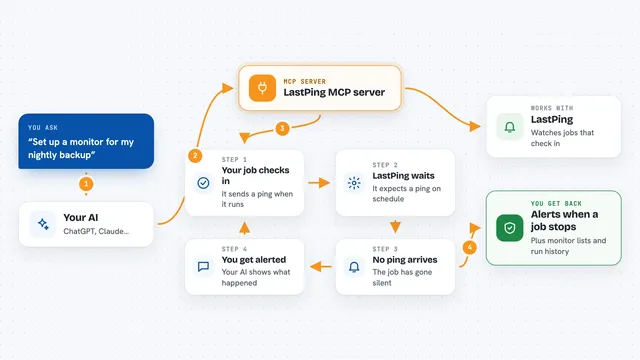
You tell your AI what you want, for example to keep an eye on a web address or to run a task on a schedule. Your AI passes that request to this helper, and the helper sends it to Tickstem. Tickstem then starts checking that address or running that job on the schedule you asked for. Later, when you ask how things are going, your AI asks Tickstem for the latest results and shows them to you in the chat. You never have to open the Tickstem website yourself unless you want to.
 Click to zoom
What you can do with it
- Set up a monitor that checks a web address every few minutes
- Add a condition so a check only counts as healthy if the page contains certain text
- Create a scheduled job that calls one of your addresses on a repeating timetable
- Pause a monitor or job during maintenance and resume it afterwards
- Set up a heartbeat that alerts you if a job stops reporting in
- Check whether an email address looks real before you send to it
- Look at recent check results and job runs to see what failed and when
Try asking your AI
- “Set up a monitor for https://mywebsite.com and tell me if it goes down”
- “Create a cron job called nightly-report that calls https://mywebsite.com/report every day at 2am”
- “Make a monitor for my checkout page that fails if the response takes longer than 2 seconds”
- “Check whether hello@mywebsite.com is a valid email address”
What it gives back to you
You get answers in plain chat text. When you ask for a list, your AI shows you a tidy list of your monitors, jobs, or heartbeats with their current status. When you ask about recent activity, you see the latest checks or job runs with the time, the result, and any error message. When you create or change something, your AI confirms what it did.
Before you start
What you need
- A Tickstem account (there is a free tier)
- An API key from app.tickstem.dev (a kind of password that lets the helper talk to your Tickstem account)
- An AI assistant that supports MCP, such as Claude Code or Cursor
- The tsk-mcp helper program downloaded and placed on your computer
Good to know
Some actions are permanent, like deleting a job or a monitor, and deleting also removes its past history, so be sure before you ask your AI to remove something.
Install it with your AI
Add Tickstem MCP server to your AI, no technical skills needed
You don't install anything by hand. You copy one prompt, paste it into an AI that can work on your computer, and it checks, installs and connects the server for you, asking you when it needs something.
Sign in to get the install prompt
Members get a ready-made prompt that lets the Claude desktop app check Tickstem MCP server, install it and connect it for them, step by step. You don't need any technical skills: you copy, paste and answer a few questions. Your connected AI can also find and install any of the 4,609 MCP servers here for you.
Who it's for
Developers, small site owners, and anyone who runs a website or scheduled script and wants an easy way to keep an eye on it.