MCP server · Productivity
Odoo 19 MCP server
by twtrubiks
Let your AI look up, add, and update records in your Odoo 19 company system for you.
This is a small helper that connects your AI assistant to Odoo 19, the business software many companies use for customers, sales, invoices and stock. Once it is set up, you can just ask your AI in plain words to find or change things in Odoo, and it will do it for you. It is handy for anyone who works in Odoo every day and wants to skip a lot of clicking.
What is an MCP server? The 30-second version
On its own, your AI can only chat. It cannot see your Odoo data or change anything there. An MCP server is a small helper program that gives your AI a new skill, in this case a connection to your Odoo 19 system. You connect it once, and after that your AI can look things up in Odoo or make changes when you ask, using your own Odoo login and permissions.
What this MCP server does
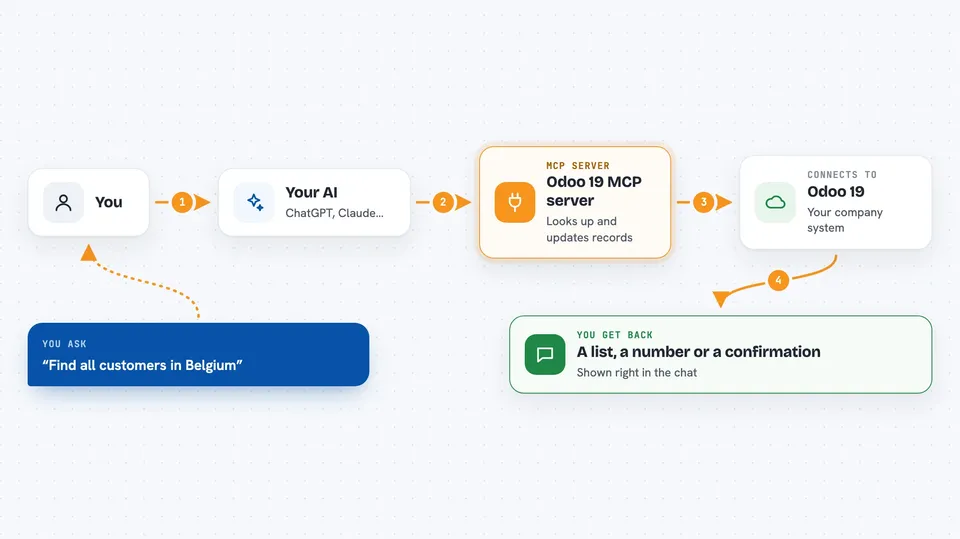
You ask your AI something in normal words, like find all customers in Belgium or add a note to this order. Your AI passes that request to this helper program. The helper then talks to your Odoo 19 server using your Odoo login, so it only sees and does what you are allowed to see and do. Odoo sends the answer back, and your AI shows it to you in the chat, as a list, a summary or a confirmation that the change was made.
 Click to zoom
What you can do with it
- Search and list records in any Odoo model, like customers, sales orders or invoices
- Count records to get quick numbers, for example how many open orders you have
- Read the full details of a specific record by its ID
- Create new records, like a new contact or a new sales order
- Update existing records, for example change a phone number or a status
- Delete records, with a second confirmation step before it really deletes
- See which models and fields exist in your Odoo, and who you are logged in as
Try asking your AI
- “Find all customers whose name contains 'Dupont' and show me their email addresses”
- “How many sales orders are still open this month?”
- “Create a new contact called Marie Lambert with email marie@example.com”
- “Update the phone number of customer ID 42 to 02 555 12 34”
What it gives back to you
You get answers in the chat: lists of records with their fields, single record details, counts as plain numbers, or a short confirmation that a record was created, updated or deleted. For model questions, it shows the list of models or the field names and types. Everything is shown as text in the conversation, so you can copy it or ask follow-up questions.
Before you start
What you need
- An Odoo 19 account with access to the database you want to use
- An Odoo API key (a kind of password for apps; you create it inside your Odoo user settings)
- The URL and database name of your Odoo server
- Python 3.13 installed if you run it on your own computer, or Docker if you prefer
Good to know
It can create, change and delete real records in your Odoo, so turn on read-only mode if you only want lookups, and always check before letting it delete anything.
Install it with your AI
Add Odoo 19 MCP server to your AI, no technical skills needed
You don't install anything by hand. You copy one prompt, paste it into an AI that can work on your computer, and it checks, installs and connects the server for you, asking you when it needs something.
Sign in to get the install prompt
Members get a ready-made prompt that lets the Claude desktop app check Odoo 19 MCP server, install it and connect it for them, step by step. You don't need any technical skills: you copy, paste and answer a few questions. Your connected AI can also find and install any of the 4,609 MCP servers here for you.
Who it's for
People who work in Odoo 19 every day, like sales admins, accountants, support staff and operations teams, and anyone who wants to ask their AI for Odoo data instead of clicking through menus.