MCP server · Productivity
PDF Card MCP server
by velyan
Turn a local PDF into a clean, portable HTML reader with cards, notes, highlights and source page previews.
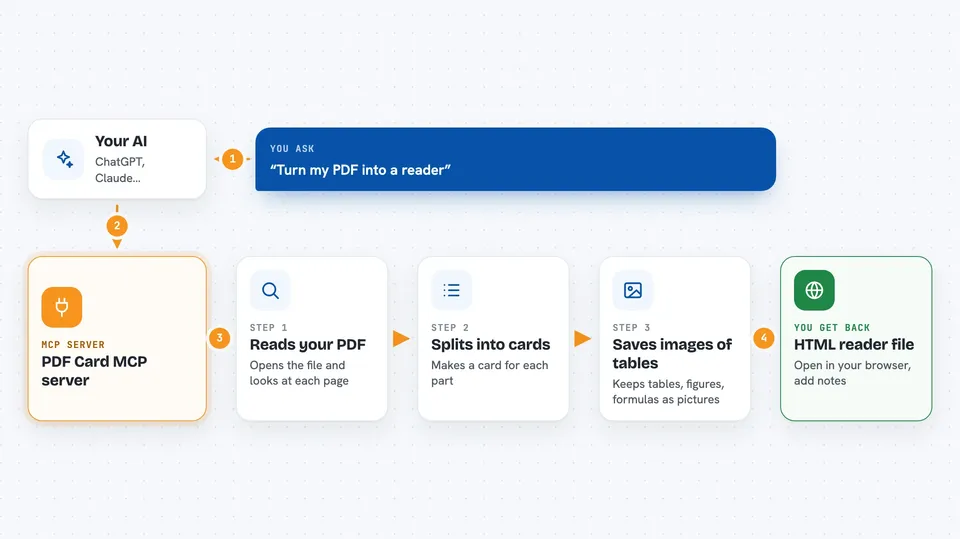
PDF Card MCP is a small helper that takes a PDF on your computer and turns it into a tidy HTML reader you can open in any browser. It breaks long documents into smaller cards, keeps tables and figures as pictures, and lets you add notes and highlights. It is handy if you often have to read, cite or check long PDFs like papers, reports or manuals.
What is an MCP server? The 30-second version
On its own, your AI can only chat. An MCP server is a small helper program that gives your AI a new skill or a connection to something on your computer. This one connects your AI to PDF files stored on your machine, so it can convert them into a reader for you. You just ask in plain words, and the helper does the file work behind the scenes.
What this MCP server does
You tell your AI something like: convert this PDF into a reader. Your AI passes the file path to this helper. The helper reads the PDF, splits it into cards, crops tables, figures and formulas as images, and writes a single HTML file. You get back the location of that file, plus a small summary file with details about the cards and any warnings. You can then open the HTML file in your browser, read it, and add your own notes and highlights.
 Click to zoom
What you can do with it
- Convert a local PDF into a standalone HTML reader
- Keep tables, figures and formulas as faithful image crops
- Add highlights and notes to the generated reader
- Export your notes and highlights as a Markdown file
- Publish a read-only reader with selected public annotations
- Check that a notes file matches a generated reader before publishing
- Limit how many pages get processed when you only need a part
Try asking your AI
- “Turn the PDF at ~/Documents/report.pdf into a reader and save it to my Desktop”
- “Convert this paper into cards and keep the original color style”
- “Validate my notes file against the reader I generated earlier”
- “Publish a shareable read-only version of my reader with only public notes”
What it gives back to you
You get back the path to a new HTML file you can open in your browser. Alongside it, a small JSON file lists the cards, pages, warnings and source anchors. If you asked to publish, you get a read-only HTML file or a small folder bundle ready to share. In the chat, your AI usually shows you these paths and a short summary of what was created.
Before you start
What you need
- A PDF file saved on your computer
- The uv tool installed (a small program that manages Python for you; the README shows a one-line install)
- An MCP client that can run local servers, such as Claude Code or Claude Desktop
Good to know
Published readers can contain the original PDF text, page images and any notes you include, so only share them when you have the right to do so.
Install it with your AI
Add PDF Card MCP server to your AI, no technical skills needed
You don't install anything by hand. You copy one prompt, paste it into an AI that can work on your computer, and it checks, installs and connects the server for you, asking you when it needs something.
Sign in to get the install prompt
Members get a ready-made prompt that lets the Claude desktop app check PDF Card MCP server, install it and connect it for them, step by step. You don't need any technical skills: you copy, paste and answer a few questions. Your connected AI can also find and install any of the 4,609 MCP servers here for you.
Who it's for
People who read, cite or check long PDFs, like students, researchers, analysts and anyone who wants a calmer reading view of dense documents.