MCP server · Video editing
FFmpeg MCP server
Let your AI find, trim, join, resize and play videos on your own computer by just asking.
This is a small helper that connects your AI assistant to FFmpeg, a free video tool that runs on your own computer. Once it is set up, you can ask your AI in plain words to find a video, cut a piece out of it, join clips together, or play it. It is handy for anyone who deals with video files but does not want to learn video editing software or type complicated commands.
What is an MCP server? The 30-second version
On its own, your AI can only chat. An MCP server is a small helper program that gives your AI a new skill or a connection to something else, and here that something is FFmpeg, the video tool on your machine. Once this helper is running, your AI can look at your video files and do things to them when you ask. You stay in the chat, and the helper does the technical work behind the scenes.
What this MCP server does
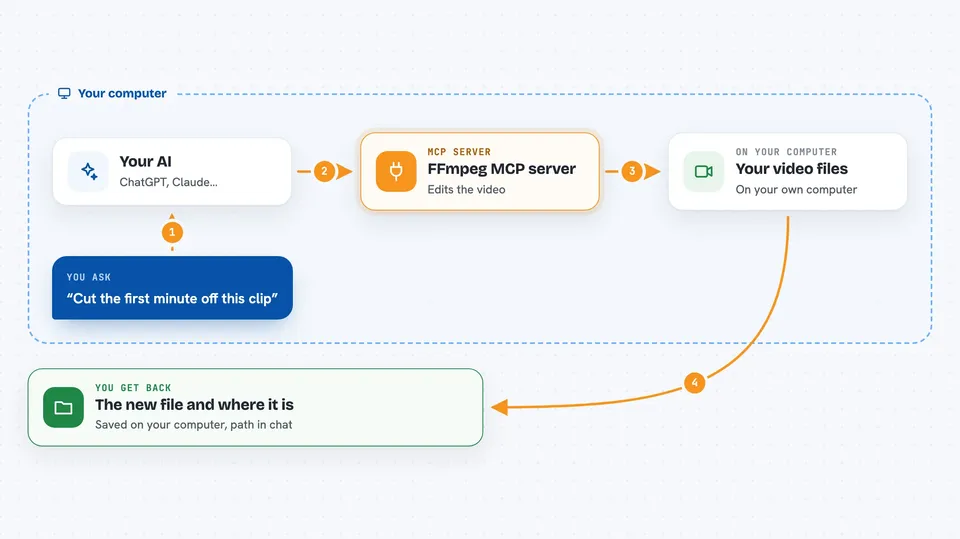
You tell your AI what you want in normal words, like cut the first minute off this clip. The AI passes that request to this helper, and the helper runs the FFmpeg command on your computer. FFmpeg opens the video file, does the trimming, joining, resizing or frame grabbing, and saves the result where you asked. The helper then reports back to your AI, and your AI tells you what happened and where the new file is.
 Click to zoom
What you can do with it
- Find a video file on your computer by name, even if you only remember part of it
- Check a video's length, frame rate, format and size
- Cut a piece out of a video by giving a start and end time
- Join several video clips into one file
- Play a video or audio file right away
- Resize a video or place one video on top of another
- Pull still pictures out of a video at set intervals
What it gives back to you
You get answers in the chat, like the full path of a file it found, or a short list of details such as length, frame rate and size. When it changes a video, it tells you the path of the new file it saved. When it plays something, the video opens in a player window on your computer. You do not get the video itself pasted into the chat, just the results and the file locations.
Before you start
What you need
- A Mac computer (this server currently only works on macOS)
- FFmpeg and ffplay installed on your computer
- The uv tool installed, which the setup steps use
- An AI app that supports MCP servers, like Cline
Good to know
This helper can create new video files and overwrite files on your computer, so check the output paths before you let it run.
Install it with your AI
Add FFmpeg MCP server to your AI, no technical skills needed
You don't install anything by hand. You copy one prompt, paste it into an AI that can work on your computer, and it checks, installs and connects the server for you, asking you when it needs something.
Sign in to get the install prompt
Members get a ready-made prompt that lets the Claude desktop app check FFmpeg MCP server, install it and connect it for them, step by step. You don't need any technical skills: you copy, paste and answer a few questions. Your connected AI can also find and install any of the 4,361 MCP servers here for you.
Who it's for
People who work with video files on a Mac and want to trim, join or check clips without learning editing software.