MCP server · Productivity
Google Forms MCP server
by A1-x-Tech
Let your AI build Google Forms, add questions, publish them, and read the answers for you.
This is a small helper that connects your AI assistant to Google Forms. Once it is set up, you can ask your AI in plain words to build a survey, change a question, publish a form, or summarize the answers that came in. It is handy for anyone who collects feedback, sign-ups, or RSVPs and does not want to click through the Forms editor by hand.
What is an MCP server? The 30-second version
On its own, your AI can only chat with you. An MCP server is a small helper program that gives your AI a new skill or a connection to an app, and here it connects your AI to Google Forms. Once it is connected, the AI can look at your forms and answers, or make changes there, when you ask it to. You do not need to understand how it works inside. You just talk to your AI like usual.
What this MCP server does
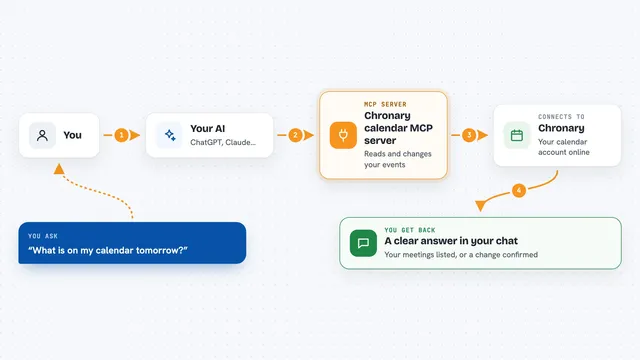
You ask your AI something about your forms, like show me the questions or add a rating question. The AI passes your request to this helper. The helper talks to Google Forms using your Google account, does the reading or the change, and sends the result back. Your AI then explains what it found or what it changed, right in the chat. If a change is needed, the AI usually asks you to confirm first.
What you can do with it
- See the questions, settings, and responder link of a form
- Create a new form and add questions like rating, choice, date, or text
- Reorder a question or update a title, description, or quiz setting
- Publish a form so people can start filling it in
- Stop accepting new responses without deleting the form
- Read responses and summarize the free-text answers
- Set up notifications for new submissions through Google Pub/Sub
Try asking your AI
- “Show me the questions and response settings of the customer feedback form.”
- “Create an RSVP form with name, meal preference, and arrival date.”
- “Add a required 1 to 5 rating question called How was your experience? after the first question.”
- “Summarize the free-text answers from yesterday's survey.”
What it gives back to you
You get answers in the chat: lists of questions, a summary of responses, counts of how many answers came in, or the responder link. When you ask for a change, it tells you what it changed, like a new question added or a form published. It does not show you raw technical data unless you ask for it.
Before you start
What you need
- A Google account
- Node.js 20 or newer on your computer
- A Google Cloud project with the Google Forms API turned on and a Desktop app OAuth client (the assistant walks you through this when you say connect Google Forms)
Good to know
It can change or delete questions and publish or close your forms, so check what the AI is about to do before you confirm.
Install it with your AI
Add Google Forms MCP server to your AI, no technical skills needed
You don't install anything by hand. You copy one prompt, paste it into an AI that can work on your computer, and it checks, installs and connects the server for you, asking you when it needs something.
Sign in to get the install prompt
Members get a ready-made prompt that lets the Claude desktop app check Google Forms MCP server, install it and connect it for them, step by step. You don't need any technical skills: you copy, paste and answer a few questions. Your connected AI can also find and install any of the 4,610 MCP servers here for you.
Who it's for
Anyone who runs surveys, collects feedback, or manages sign-ups and wants to do it by chatting instead of clicking.