MCP server · Productivity
Laver MCP server
by Developyn
Lets your AI read and update Laver boards, tickets, comments and wiki pages for you.

This is a small helper that connects your AI assistant to Laver, the project management app with kanban boards, tickets and a team wiki. Once it is set up, you can ask your AI in plain words to look things up or make changes in Laver, and it will do them for you. It is handy if you already use Laver at work and want to save time on everyday board and ticket chores.
What is an MCP server? The 30-second version
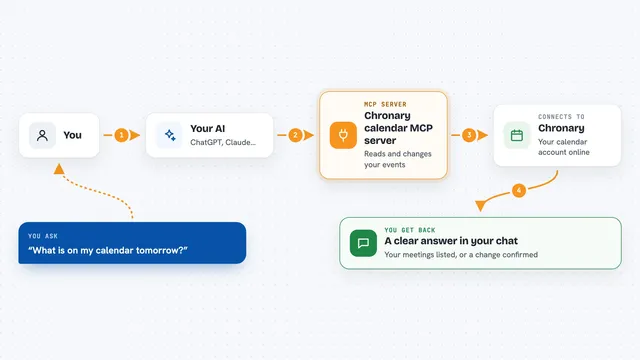
On its own, your AI can only chat. It cannot see your Laver boards or change anything there. An MCP server is a little helper program that gives your AI a new skill, in this case a connection to Laver. You ask your AI something, the AI passes the request to this helper, and the helper talks to Laver for you.
What this MCP server does
You ask your AI a question or give it a task, like showing what is overdue or adding a ticket. The AI uses this helper, which sends the request to Laver's own system, the same one the Laver website uses. Laver sends back the answer or makes the change, and the helper passes it to your AI. Your AI then explains the result to you in the chat. Nothing is stored on your computer, and if Laver refuses something, you get the real reason back instead of a vague error.
 Click to zoom
What you can do with it
- List your Laver workspaces and boards
- Show tickets on a board, including what changed recently
- Find overdue or unassigned tickets across all boards
- Create, update or move a ticket
- Add a comment to a ticket
- Search boards, tickets, wiki pages and comments at once
- Upload or download a ticket attachment
Try asking your AI
- “What tickets are overdue in my Laver workspace?”
- “Create a ticket called Fix login bug on the Support board, in the To do column”
- “Move ticket 123 to In progress”
- “Show me the comments on the latest ticket about the invoice page”
What it gives back to you
You get answers in the chat: lists of tickets, board details, comments, search results, or a short confirmation that something was created or changed. Attachments can come back as text, as an image you can look at, or saved to a file on your computer. Nothing is shown as raw technical data unless you ask for it.
Before you start
What you need
- A Laver account
- A workspace-scoped API key from Laver, created under Admin then API keys (this is like a password that lets the helper act as you)
- Node.js installed on your computer, since the helper runs with npx
Good to know
Some actions cannot be undone, like deleting a subtask or permanently deleting a ticket that is already in the trash, so be clear about what you ask for.
Install it with your AI
Add Laver MCP server to your AI, no technical skills needed
You don't install anything by hand. You copy one prompt, paste it into an AI that can work on your computer, and it checks, installs and connects the server for you, asking you when it needs something.
Sign in to get the install prompt
Members get a ready-made prompt that lets the Claude desktop app check Laver MCP server, install it and connect it for them, step by step. You don't need any technical skills: you copy, paste and answer a few questions. Your connected AI can also find and install any of the 4,609 MCP servers here for you.
Who it's for
Teams and individuals who already use Laver for project management and want their AI assistant to handle board and ticket tasks.