MCP server · Productivity
FileToPDF MCP server
by FileToPDF
Turn documents, images, HTML and Markdown into PDF files just by asking your AI.
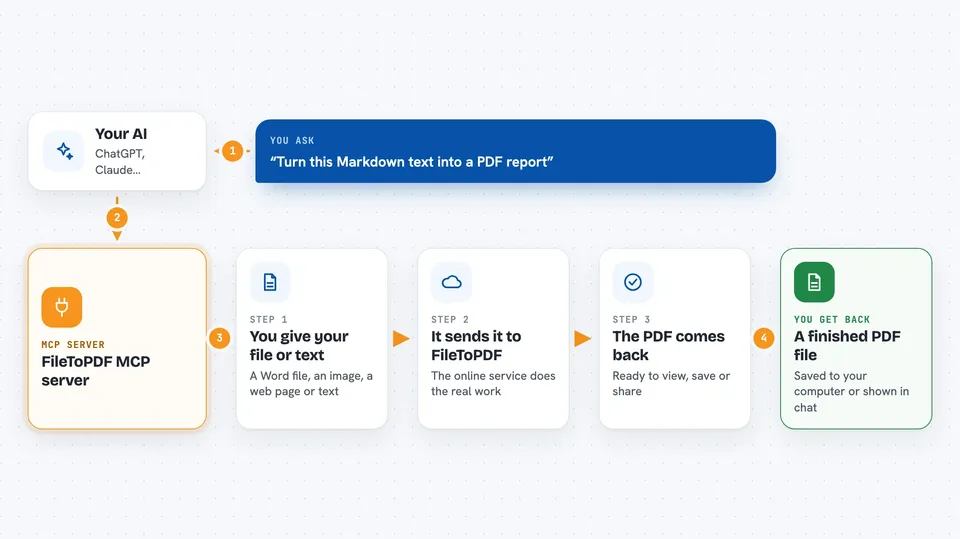
This is a small helper that lets your AI make PDF files for you. You ask in plain words, and it turns your Word document, spreadsheet, slide deck, image, web page or Markdown text into a PDF. It is handy for anyone who has to send invoices, reports or documents as PDFs and does not want to fight with a converter.
What is an MCP server? The 30-second version
On its own, your AI can only chat with you. An MCP server is a small helper program that gives your AI a new skill or a connection to another service. This one connects your AI to FileToPDF, a website that turns files into PDFs. Once it is connected, you can just ask your AI to make a PDF and it will do the work through this helper.
What this MCP server does
You ask your AI something like make a PDF from this Markdown text or convert this Word file to PDF. The AI passes your request to this helper. The helper sends the file or text to the FileToPDF service, which does the actual converting. The PDF comes back to your AI, which shows you a summary and can save the file for you. Each successful conversion uses one credit from your FileToPDF account.
 Click to zoom
What you can do with it
- Convert a Word, Excel or PowerPoint file to PDF
- Turn a web page or HTML text into a PDF
- Turn Markdown text into a clean PDF
- Convert an image file to PDF
- Save the finished PDF to a folder on your computer
- Check your FileToPDF plan and how many credits you have left
Try asking your AI
- “Convert this Word document to PDF and save it to my Desktop”
- “Turn this Markdown text into a PDF report”
- “Make a PDF from this HTML page”
- “How many FileToPDF credits do I have left?”
What it gives back to you
You get a short summary in the chat: the file name, size and a note that the conversion worked. The PDF itself comes back as an attached file that your AI can save for you. If you set an output folder, the PDF is also written to your computer. If something goes wrong, you get a plain error message instead.
Before you start
What you need
- A FileToPDF API key (a kind of password for apps; you get one free at filetopdf.dev, 10 free conversions, no signup needed)
- The Claude desktop app or another app that supports MCP servers
- Node.js 18 or newer if you install it on your own computer (the hosted version needs nothing)
Good to know
Each successful conversion uses one credit from your FileToPDF account, and layout options like landscape or passwords only work on paid plans.
Install it with your AI
Add FileToPDF MCP server to your AI, no technical skills needed
You don't install anything by hand. You copy one prompt, paste it into an AI that can work on your computer, and it checks, installs and connects the server for you, asking you when it needs something.
Sign in to get the install prompt
Members get a ready-made prompt that lets the Claude desktop app check FileToPDF MCP server, install it and connect it for them, step by step. You don't need any technical skills: you copy, paste and answer a few questions. Your connected AI can also find and install any of the 4,361 MCP servers here for you.
Who it's for
Office workers who often need to turn documents, spreadsheets, slides or web pages into PDFs, and anyone who wants to do that by just asking their AI.