MCP server · Chat
Gemini Bridge MCP server
by jaspertvdm
Lets your AI assistant ask Google's Gemini models questions and get answers back in the same chat.
This is a small helper that connects your AI assistant to Google's Gemini models, like Gemini Pro and Flash. It is handy if you already use an AI app such as Claude Desktop and want to reach Gemini from the same place, without opening another tab. You do not need to be technical to try it, but someone has to set it up once for you.
What is an MCP server? The 30-second version
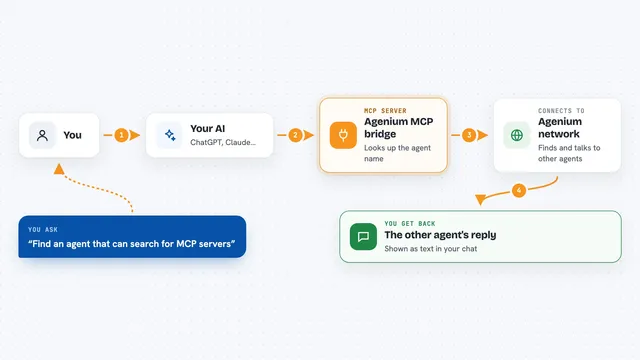
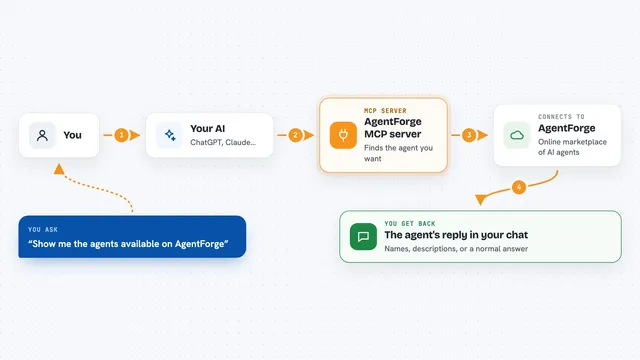
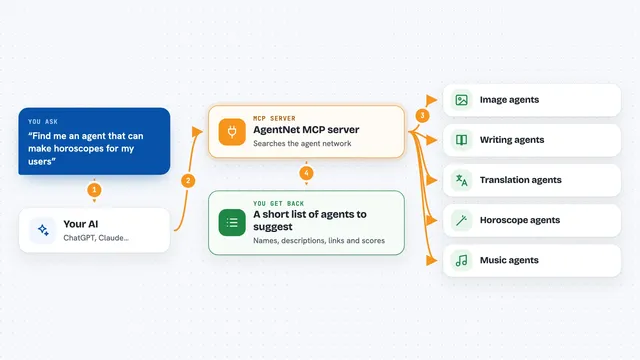
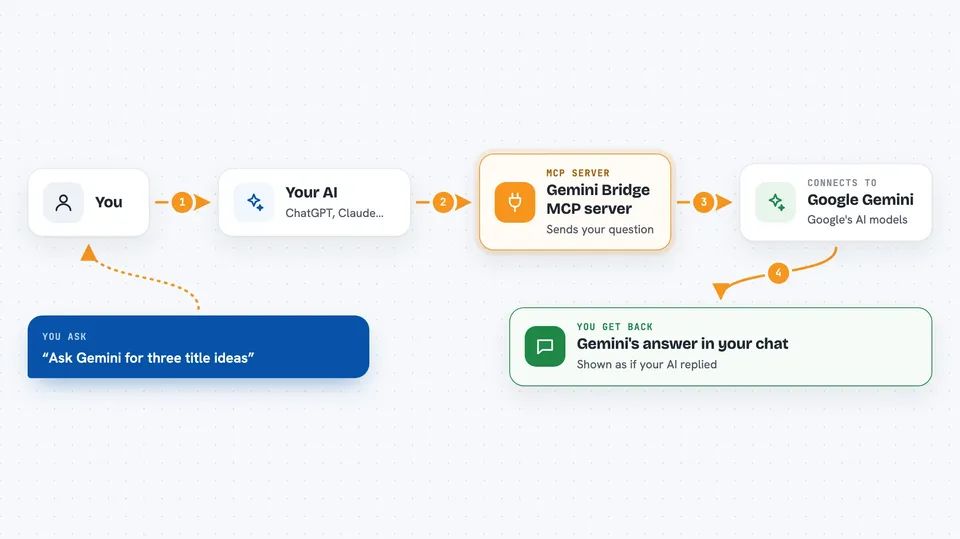
On its own, your AI can only chat with you using what it already knows. An MCP server is a small helper program that gives your AI a new skill or a connection to another service. This one is a bridge to Google's Gemini models, so your AI can pass your question along to Gemini and bring the reply back. Think of it as a phone line between your assistant and Gemini.
What this MCP server does
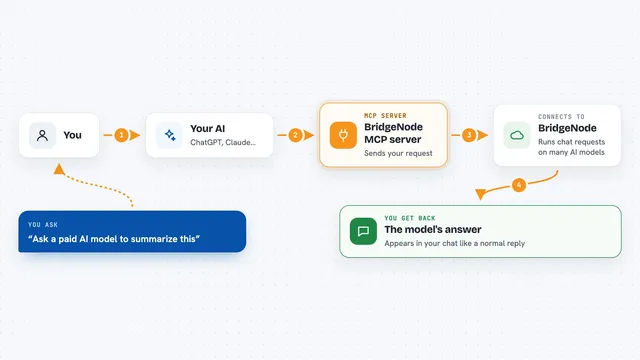
You type a question in your AI app, like you normally would. Your AI notices that this helper can reach Gemini, so it sends your question over to it. The helper talks to Google's Gemini service using your Google API key, which acts like a password. Gemini writes an answer, and the helper passes it back. Your AI then shows you the answer in the chat, as if it had answered itself.
 Click to zoom
What you can do with it
- Ask Gemini a question and read the answer in your current chat
- Compare how two different AI models reply to the same prompt
- Get a second opinion from Gemini on something you are working on
- Ask Gemini to help rewrite or summarize a piece of text
- Try Gemini Pro or other Gemini models without leaving your AI app
Try asking your AI
- “Ask Gemini what the main risks are in this contract summary”
- “Use Gemini to rewrite this paragraph in a friendlier tone”
- “Ask Gemini Pro to give me three title ideas for this article”
- “Send this question to Gemini and show me its answer”
What it gives back to you
You get Gemini's answer as text, right inside the chat you are already using. It can be a short reply, a longer explanation, or a rewritten piece of text, depending on what you asked. If the answer is long, it may arrive in pieces as it is being written. Nothing is saved anywhere by this helper; it just passes messages back and forth.
Before you start
What you need
- A Google AI API key (a kind of password from Google's AI site; you get one for free there)
- An AI app that supports MCP servers, such as the Claude desktop app
- Python installed on your computer, or Docker if you prefer that route
Good to know
Your questions are sent to Google's Gemini service, so avoid pasting anything private or confidential, and keep your Google API key secret.
Install it with your AI
Add Gemini Bridge MCP server to your AI, no technical skills needed
You don't install anything by hand. You copy one prompt, paste it into an AI that can work on your computer, and it checks, installs and connects the server for you, asking you when it needs something.
Sign in to get the install prompt
Members get a ready-made prompt that lets the Claude desktop app check Gemini Bridge MCP server, install it and connect it for them, step by step. You don't need any technical skills: you copy, paste and answer a few questions. Your connected AI can also find and install any of the 4,609 MCP servers here for you.
Who it's for
People who already chat with an AI assistant and want to reach Google's Gemini models from the same window, without setting up anything complicated.