MCP server · Productivity
Plane MCP server
by kelvin6365
Lets your AI look up, create, and update Plane projects and issues for you in plain chat.

This is a small helper that connects your AI assistant to Plane, the tool where your team tracks projects and issues. Once it is set up, you can ask your AI to show your projects, list issues, or create and update issues without clicking around. It is handy if you already use Plane at work and want to save time on everyday project admin.
What is an MCP server? The 30-second version
On its own, your AI can only chat with you. An MCP server is a small helper program that gives your AI one new skill, in this case a connection to Plane. You install it on your own computer, and it talks to Plane using your account. After that, when you ask something about your Plane projects or issues, your AI can look it up or make the change for you.
What this MCP server does
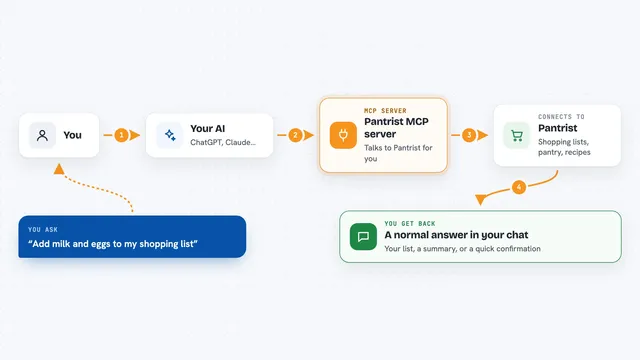
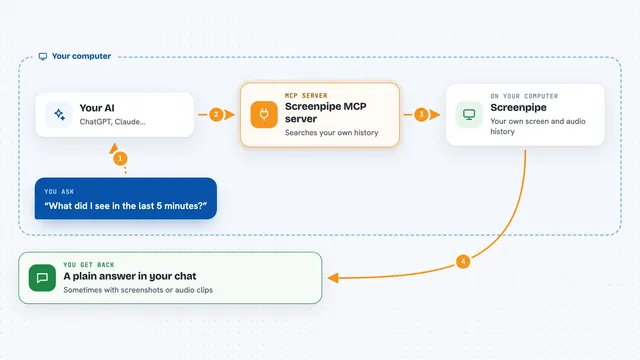
You ask your AI a question about Plane, like which projects you have or what high priority issues are open. The AI passes that request to this helper program running on your computer. The helper talks to Plane using your API key and workspace, then sends the answer back. Your AI shows it to you in the chat as a list or a short summary. If you ask it to create or update an issue, it will ask for your approval before making the change.
 Click to zoom
What you can do with it
- List all projects in your Plane workspace
- Get details about a specific project
- Create a new issue in a project, with a title, description, priority, and assignees
- List issues in a project and filter them by state, priority, or assignee
- Get details about one specific issue
- Update an existing issue, for example change its priority or description
Try asking your AI
- “List all the projects in my Plane workspace.”
- “Create a new high priority issue in the Marketing project titled Update social media strategy.”
- “Show me all the high priority issues in the Development project.”
- “Update issue 123 in the QA project and change its priority to urgent.”
What it gives back to you
You get back plain answers in the chat: lists of projects or issues, details about one project or issue, or a short confirmation that something was created or updated. Lists usually show titles, priorities, and states so you can scan them quickly. If you asked for a change, you will see what was changed and where.
Before you start
What you need
- A Plane account with a workspace
- A Plane API key (a kind of password for apps; you create it in your Plane account settings)
- The slug of your Plane workspace (the short name in your Plane web address)
- Node.js 22 or newer installed on your computer
Good to know
It can create and change issues in your Plane workspace, so check what your AI is about to do before you approve it, and keep your API key private.
Install it with your AI
Add Plane MCP server to your AI, no technical skills needed
You don't install anything by hand. You copy one prompt, paste it into an AI that can work on your computer, and it checks, installs and connects the server for you, asking you when it needs something.
Sign in to get the install prompt
Members get a ready-made prompt that lets the Claude desktop app check Plane MCP server, install it and connect it for them, step by step. You don't need any technical skills: you copy, paste and answer a few questions. Your connected AI can also find and install any of the 4,361 MCP servers here for you.
Who it's for
Project managers, team leads, and anyone who already uses Plane and wants to handle everyday project and issue updates through chat instead of clicking around.