MCP server · Email
Lettio MCP server
by lettio-eu
Let your AI read, search, reply to and send email from your private EU-hosted Lettio mailbox.
Lettio MCP is a small helper that connects your AI assistant to a Lettio email mailbox. Once it is set up, you can ask your AI to check your inbox, find a message, or send a reply, and it will do it for you. It is handy if you use Lettio for work email and want your AI to help with the daily pile of messages.
What is an MCP server? The 30-second version
On its own, your AI can only chat with you. An MCP server is a small helper program that gives your AI a new skill or a connection to an app or service. This one connects your AI to a Lettio mailbox, so it can look things up and do things there when you ask. Think of it as giving your assistant a key to your inbox, but only the actions you allow.
What this MCP server does
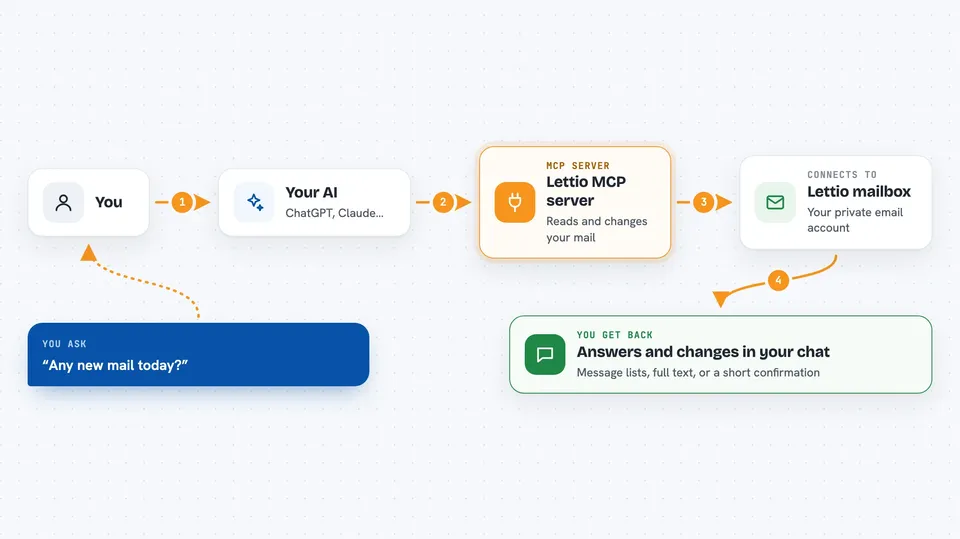
You ask your AI something like "any new mail today?" or "reply to Anna about the invoice". Your AI passes that request to this helper program. The helper talks to your Lettio mailbox over a standard called JMAP, which is how the mailbox is read and changed. It brings the answer back, or makes the change you asked for, like sending a reply or moving a message. You see the result right in your chat.
 Click to zoom
What you can do with it
- List your mailboxes and folders with message and unread counts
- Show your most recent emails in the inbox
- Search emails by sender, subject or body text
- Read the full content of a single message
- Reply to a message in the same conversation, optionally to everyone
- Send a new plain-text email as your signed-in mailbox
- Mark messages read or unread, flag or unflag them, and move them to archive or trash
Try asking your AI
- “What is in my inbox right now?”
- “Find the email from Anna about the invoice last week.”
- “Reply to that message and say I will send the file tomorrow.”
- “Mark all messages from the newsletter as read.”
- “Move the message about the office move to archive.”
What it gives back to you
You get answers in plain text in your chat: lists of messages with sender, subject and date, the full text of a message you asked to read, or a short confirmation that something changed. If you asked to send or reply, it tells you it sent the email. If you asked to move or flag something, it confirms the change. Everything stays in the chat, so you can ask follow-up questions.
Before you start
What you need
- A Lettio mailbox
- An app password for that mailbox (a separate password made for apps, not your main login)
- Node.js 18 or newer if you run it on your own machine
Good to know
It can send email and change your mailbox, so check what your AI is about to do before you say yes.
Install it with your AI
Add Lettio MCP server to your AI, no technical skills needed
You don't install anything by hand. You copy one prompt, paste it into an AI that can work on your computer, and it checks, installs and connects the server for you, asking you when it needs something.
Sign in to get the install prompt
Members get a ready-made prompt that lets the Claude desktop app check Lettio MCP server, install it and connect it for them, step by step. You don't need any technical skills: you copy, paste and answer a few questions. Your connected AI can also find and install any of the 4,361 MCP servers here for you.
Who it's for
Anyone who uses a Lettio mailbox for work and wants their AI assistant to help with reading, searching and replying to email.