MCP server · Productivity
Filesystem MCP server
Let your AI read, search, write, copy and move files in one folder you choose on your computer.
This is a small helper that lets your AI assistant work with files on your own computer, inside one folder that you pick. You can ask it to open a file, list what is in a folder, search for something, or even create and rename files. It is handy if you keep notes, drafts, or project files in a folder and want your AI to help you manage them.
What is an MCP server? The 30-second version
On its own, your AI can only chat. It cannot see your computer or touch your files. An MCP server is a small helper program that gives your AI a new skill, and this one gives it a connection to a folder on your machine. Once it is connected, you can ask your AI to read or change files in that folder, and it will do it for you.
What this MCP server does
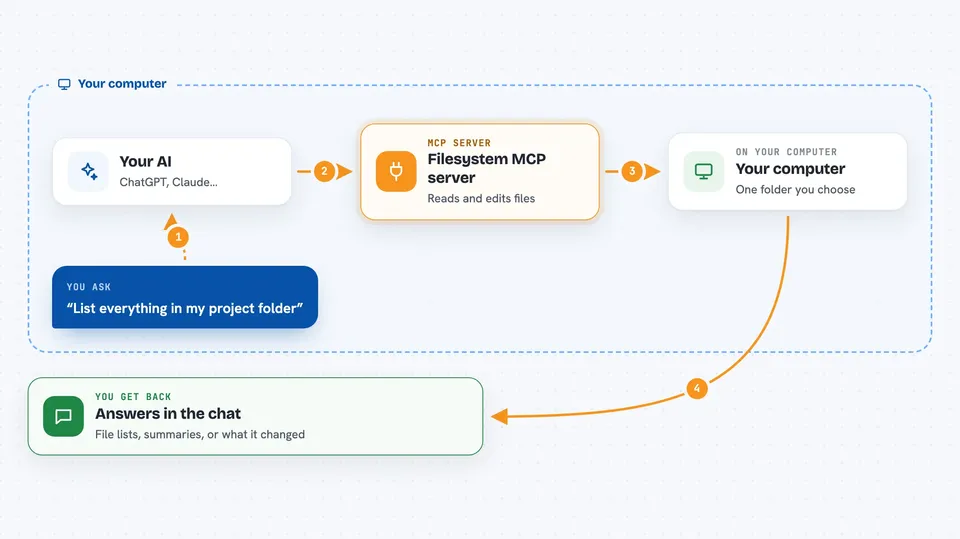
You point this helper at one folder on your computer, for example your Documents or a project folder. When you ask your AI something like "what is in this folder" or "open my notes file", your AI passes the request to this helper. The helper looks at the real files on your disk and sends the answer back. If you ask it to write, copy, move or delete something, it does that too, but only inside the folder you allowed. Nothing outside that folder is touched.
 Click to zoom
What you can do with it
- Read the contents of a file so your AI can summarise or answer questions about it
- List everything in a folder, with sizes and types
- Search for files by name pattern, like all .txt or .md files
- Create new files or add text to existing ones
- Create new folders
- Copy or move files and folders to a new place
- Delete files or folders you no longer need
Try asking your AI
- “List everything in my project folder and tell me what each file is”
- “Read notes.txt and give me a short summary”
- “Find all markdown files in this folder and list their names”
- “Create a new file called ideas.txt and write down these three points”
What it gives back to you
You get answers in the chat, in plain words. If you asked for a list, you see the file names with their sizes and types. If you asked to read a file, you see the text or a summary of it. If you asked it to create, move or delete something, it tells you what it did.
Before you start
What you need
- Python installed on your computer (the free installer from python.org)
- The filesystem-mcp package installed with pip
- The folder path you want your AI to be allowed to work in
- An AI app that supports MCP, like Claude Desktop or Cursor
Good to know
This helper can change and delete real files on your computer, so start with the --readonly flag or point it at a folder you can afford to lose, and keep backups of anything important.
Install it with your AI
Add Filesystem MCP server to your AI, no technical skills needed
You don't install anything by hand. You copy one prompt, paste it into an AI that can work on your computer, and it checks, installs and connects the server for you, asking you when it needs something.
Sign in to get the install prompt
Members get a ready-made prompt that lets the Claude desktop app check Filesystem MCP server, install it and connect it for them, step by step. You don't need any technical skills: you copy, paste and answer a few questions. Your connected AI can also find and install any of the 4,361 MCP servers here for you.
Who it's for
Anyone who keeps notes, drafts or project files in a folder and wants their AI to help read, search and organise them without leaving the chat.