MCP server · Productivity
Toggl Track MCP server
by louis030195
Start and stop your Toggl timers, check today's hours, and list projects right from your AI chat.
This is a small helper that connects your AI assistant to your Toggl Track account. Once it is set up, you can just tell your AI to start or stop a timer, ask what you are tracking right now, or see how your day and week are going. It is handy for anyone who tracks their time and would rather type a sentence than click around the Toggl app.
What is an MCP server? The 30-second version
On its own, your AI can only chat with you. An MCP server is a small helper program that gives your AI a new skill or a connection to another app. This one connects your AI to Toggl Track, so your AI can look up your timers and time entries and start or stop them for you. You ask in plain words, and the helper does the clicking in Toggl behind the scenes.
What this MCP server does
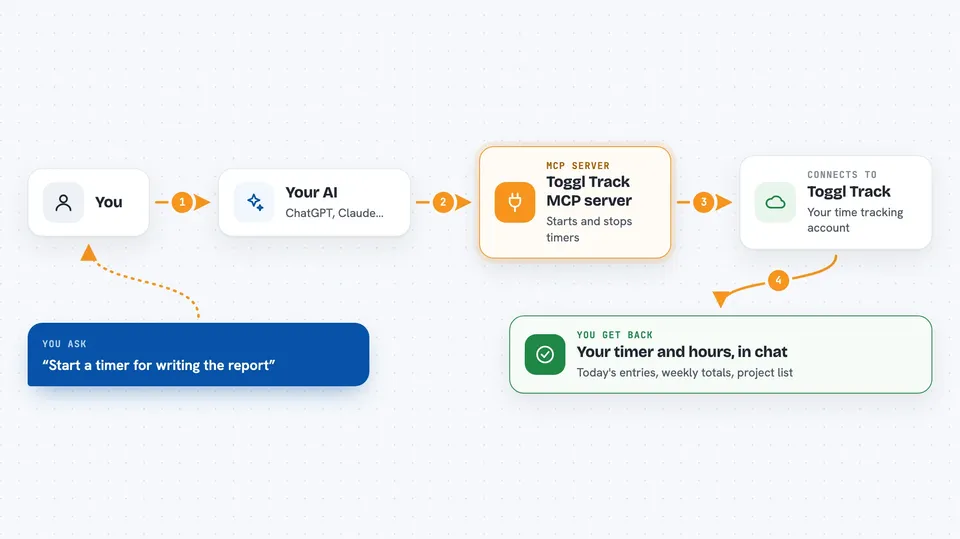
You tell your AI something like start a timer for writing the report. Your AI passes that request to this helper, and the helper talks to your Toggl Track account to start the timer. When you ask what you are tracking, the helper checks Toggl and tells your AI, which shows you the answer in the chat. You can also ask for today's entries, this week's hours, or your project list. If you want to remove an entry, the helper can delete it for you too.
 Click to zoom
What you can do with it
- Start a new timer with a description and a project
- Stop the timer that is running right now
- See what you are currently tracking
- Get today's time entries with the total duration
- List all your projects
- Get a weekly summary with hours per day and per project
- Delete a time entry you no longer need
Try asking your AI
- “Start tracking work on the MCP server project”
- “Stop the current timer”
- “What am I currently tracking?”
- “Show me today's time entries”
- “Give me last week's summary”
What it gives back to you
It gives you answers in the chat, like the name of the timer you just started, or the description and start time of the one running now. For today or the week, you get a list of entries plus totals, and the weekly view also breaks hours down by day and by project. When you delete an entry, it confirms that it was removed.
Before you start
What you need
- A Toggl Track account
- Your Toggl API token (you copy it from your Toggl profile page under API Token)
- Node.js installed on your computer if you run it yourself
- The Claude desktop app or another AI tool that supports MCP
Good to know
It can delete time entries, so be careful when you ask it to remove something, and keep your Toggl API token private.
Install it with your AI
Add Toggl Track MCP server to your AI, no technical skills needed
You don't install anything by hand. You copy one prompt, paste it into an AI that can work on your computer, and it checks, installs and connects the server for you, asking you when it needs something.
Sign in to get the install prompt
Members get a ready-made prompt that lets the Claude desktop app check Toggl Track MCP server, install it and connect it for them, step by step. You don't need any technical skills: you copy, paste and answer a few questions. Your connected AI can also find and install any of the 4,361 MCP servers here for you.
Who it's for
Freelancers, consultants, and office workers who track their hours in Toggl and want to control it without leaving their AI chat.