MCP server · Developer tools
Console Automation MCP server
by ooples
Let your AI open terminal sessions, run commands, watch output, and catch errors for you.
This is a helper that lets your AI work with terminal windows and remote servers. It can start a session, type commands, read what comes back, and flag errors. It is handy for developers, testers, and anyone who spends time in a command line.
What is an MCP server? The 30-second version
On its own, your AI can only chat with you. An MCP server is a small helper program that gives your AI a new skill or a connection to another tool. This one connects your AI to console sessions, both on your own computer and over SSH to remote machines. Once it is set up, you can ask your AI to run something and it will actually do it for you.
What this MCP server does
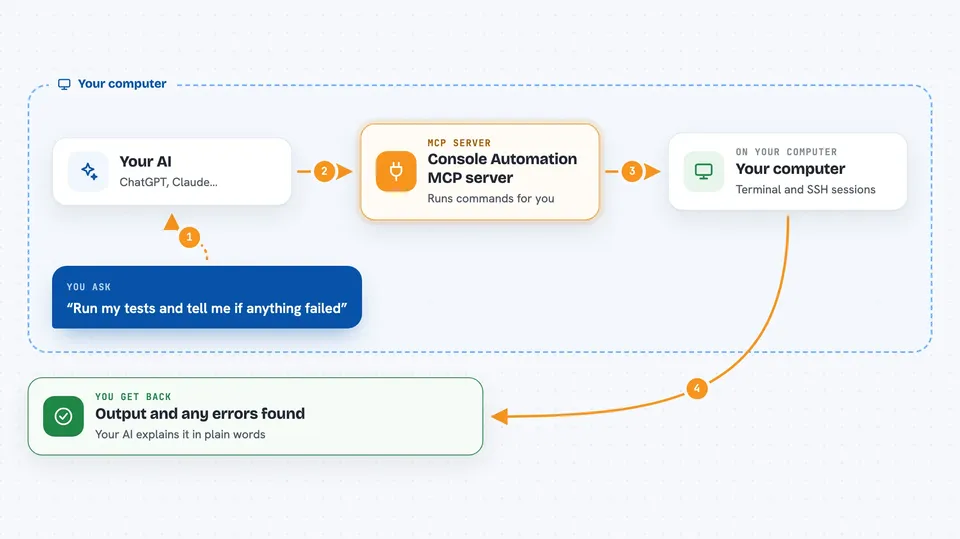
You ask your AI to run a command or start a session. The AI passes that request to this helper program. The helper opens a terminal or an SSH connection, runs what you asked, and watches the output. It can spot errors, wait for certain text to appear, or run long jobs in the background. Then it hands the results back to your AI, which explains them to you.
 Click to zoom
What you can do with it
- Start local terminal sessions and run commands in them
- Connect to remote machines over SSH
- Watch output and detect errors or exceptions
- Run long jobs in the background and check on them later
- Save connection profiles so you can reconnect quickly
- Check CPU, memory, and disk usage
- Test that command output matches what you expect
Try asking your AI
- “Start the dev server and tell me when it says it is running”
- “Run the test suite and check if anything failed”
- “Connect to my server over SSH and show me the disk usage”
- “Run the build in the background and let me know when it finishes”
What it gives back to you
You get back the output of whatever ran, plus any errors the helper noticed. It can also give you summaries, job status, resource numbers, or a list of active sessions. In the chat, your AI turns all of that into a plain answer for you.
Before you start
What you need
- Node.js 18 or newer installed on your computer
- An MCP client that supports this server, such as Codex or Claude Desktop
- SSH login details if you want to connect to remote machines
Good to know
This server can run any command and open remote connections, so treat it like a privileged terminal and keep approvals turned on.
Install it with your AI
Add Console Automation MCP server to your AI, no technical skills needed
You don't install anything by hand. You copy one prompt, paste it into an AI that can work on your computer, and it checks, installs and connects the server for you, asking you when it needs something.
Sign in to get the install prompt
Members get a ready-made prompt that lets the Claude desktop app check Console Automation MCP server, install it and connect it for them, step by step. You don't need any technical skills: you copy, paste and answer a few questions. Your connected AI can also find and install any of the 4,609 MCP servers here for you.
Who it's for
Developers, testers, and system administrators who work with terminals and remote servers.