MCP server · Productivity
Jobber MCP server
by opsconduit
Ask your AI about Jobber jobs, invoices and estimates, and get read-only answers back.
This is a small helper that connects your AI assistant to Jobber, the app many field-service businesses use to track jobs, invoices and estimates. Once it is set up, you can ask plain questions about your business and get answers pulled straight from your own Jobber account. It is made for owners and office staff who want a quick read on what needs attention, without clicking through lots of screens.
What is an MCP server? The 30-second version
On its own, your AI can only chat with you. An MCP server is a small helper program that gives your AI a new skill or a connection to an app or service. This one connects your AI to Jobber, so it can look things up in your Jobber account when you ask. It is read-only, which means it can look but not change anything in your Jobber account.
What this MCP server does
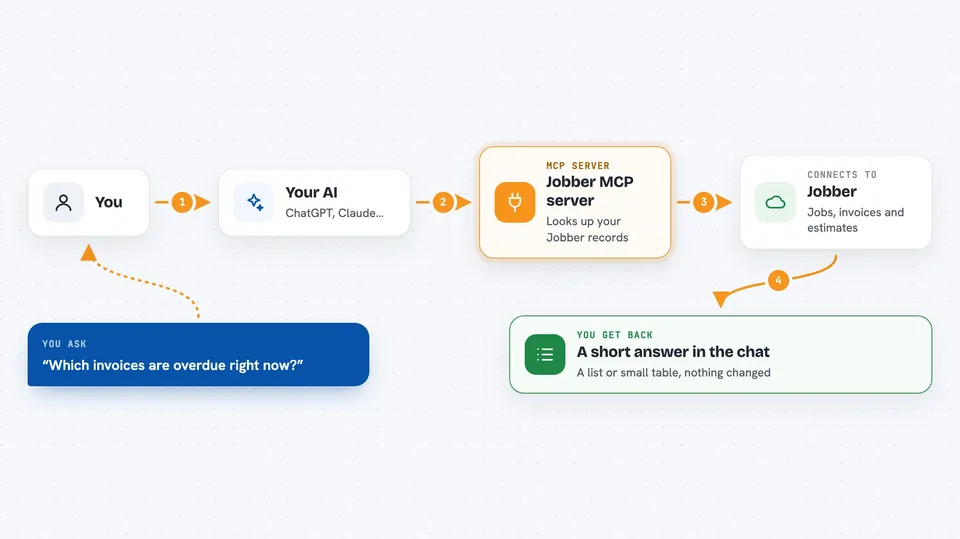
You ask your AI a question in normal words, like which invoices are overdue. Your AI passes that question to this helper program. The helper talks to Jobber using your own login and pulls back the relevant records. Your AI then turns those records into a short answer or list for you. Nothing is written back to Jobber, so your data stays as it is.
 Click to zoom
What you can do with it
- See which estimates still need a follow-up
- List invoices that are overdue
- Spot jobs that are unscheduled, stale or blocked
- Check which customers have gone quiet
- Get a short view of what needs attention this week
- Validate that your Jobber connection is working
Try asking your AI
- “Which estimates need follow-up this week?”
- “Show me invoices that are overdue right now.”
- “Which jobs are unscheduled or stuck?”
- “Which customers have not had any activity lately?”
What it gives back to you
You get back a short written answer in the chat, usually a list or a small table. For example, a list of overdue invoices with customer names and amounts, or a list of jobs that have not been scheduled. It can also confirm that your Jobber connection is working. It does not change anything in Jobber.
Before you start
What you need
- A Jobber account with access to your business data
- A Jobber app client ID and client secret (Jobber gives you these when you create an app; they act like a username and password for the connection)
- Node.js 20 or newer installed on the computer that runs the helper
- A terminal or command prompt to run the setup commands
Good to know
It can read your Jobber business data, so only connect it on a computer you trust and never share your Jobber login details or tokens by email or chat.
Install it with your AI
Add Jobber MCP server to your AI, no technical skills needed
You don't install anything by hand. You copy one prompt, paste it into an AI that can work on your computer, and it checks, installs and connects the server for you, asking you when it needs something.
Sign in to get the install prompt
Members get a ready-made prompt that lets the Claude desktop app check Jobber MCP server, install it and connect it for them, step by step. You don't need any technical skills: you copy, paste and answer a few questions. Your connected AI can also find and install any of the 4,361 MCP servers here for you.
Who it's for
Owners and office staff at field-service businesses who use Jobber and want quick, plain answers about jobs, invoices and estimates.