MCP server · Email
Inxmail MCP server
by shahabazdev
Let your AI check Inxmail transactional emails: delivery, bounces, blocks, and events.

This is a helper that connects your AI assistant to Inxmail Commerce, the tool companies use to send transactional emails like welcome notes, receipts, and password resets. Once it is set up, you can ask your AI plain questions about your emails and it will look up the answers for you. It is handy if you work with customer emails and want quick answers without clicking around the Inxmail admin panel.
What is an MCP server? The 30-second version
On its own, your AI can only chat. An MCP server is a small helper program that gives your AI a new skill or a connection to an app. This one connects your AI to Inxmail Commerce, so when you ask about a specific email address or a recent send, the AI can go and check Inxmail for you. You just type your question in normal words, and the helper does the looking up.
What this MCP server does
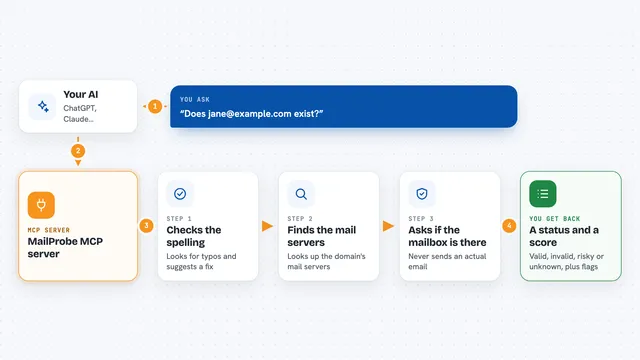
You ask your AI something like whether an email address is blocked or how a recent send went. The AI passes your question to this helper. The helper talks to your Inxmail Commerce account using the API credentials you set up. It brings back the answer, such as a delivery status, a list of bounces, or a confirmation that an event was triggered. Then the AI explains it to you in the chat.
 Click to zoom
What you can do with it
- Check if an email address is blocked or blacklisted
- Look up the delivery status of a specific email
- List recent bounces, complaints, opens, and clicks
- Trigger a transactional email event for a recipient
- See all event types configured in your Inxmail account
- Add or remove an email address from the blacklist
- Review error logs and mark them as read
Try asking your AI
- “Is test@example.com blocked or blacklisted?”
- “Check the delivery status for user@example.com”
- “List all bounces from last week”
- “Show me all event types configured in the system”
What it gives back to you
You get answers in plain chat text: yes or no for block checks, a short status for a specific email, or a list of items like bounces, complaints, or event types. When you trigger an event or change a blacklist entry, the AI tells you what it did. Everything shows up right in the conversation, so you do not have to open another tab.
Before you start
What you need
- An Inxmail Commerce account with API access
- An API Key ID and API Secret from your Inxmail admin panel (these are like a username and password for apps)
- Your Inxmail instance name (the subdomain in your API URL)
- Node.js 18 or newer if you run it with npx
Good to know
It can trigger real emails and change your blocklist or blacklist, so double check before you ask it to send or remove anything.
Install it with your AI
Add Inxmail MCP server to your AI, no technical skills needed
You don't install anything by hand. You copy one prompt, paste it into an AI that can work on your computer, and it checks, installs and connects the server for you, asking you when it needs something.
Sign in to get the install prompt
Members get a ready-made prompt that lets the Claude desktop app check Inxmail MCP server, install it and connect it for them, step by step. You don't need any technical skills: you copy, paste and answer a few questions. Your connected AI can also find and install any of the 4,361 MCP servers here for you.
Who it's for
People who work with customer emails, like marketing assistants, support agents, and operations staff who use Inxmail Commerce.