MCP server · Productivity
OpenProject MCP server
by alex13slem
Lets your AI search, create, update, assign and comment on OpenProject work packages for you.

This is a small helper that connects your AI assistant to OpenProject, the tool many teams use to track projects and tasks. Once it is set up, you can just ask your AI in plain words to find a task, add a comment, or change a due date, and it will do it in OpenProject for you. It is handy for anyone who spends a lot of time clicking around OpenProject and would rather type a sentence.
What is an MCP server? The 30-second version
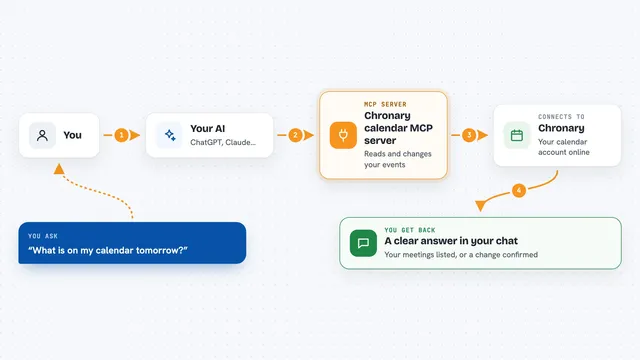
On its own, your AI can only chat. It cannot see or touch your work tools. An MCP server is a small helper program that gives your AI a new skill, in this case a connection to your OpenProject account. So when you ask about a task, the AI passes your request to this helper, the helper talks to OpenProject, and the answer comes back to you in the chat.
What this MCP server does
You type a request in plain English, like finding tasks or adding a comment. Your AI reads it and decides which OpenProject action is needed. It sends that action through this helper, which talks to your OpenProject account using your own login. OpenProject does the work and sends back the result, which your AI shows you in the chat. For changes, you get a direct link to the task that was updated.
 Click to zoom
What you can do with it
- Search work packages with filters, sorting and paging
- Create new tasks with dates, estimates and assignees
- Update status, priority, progress and due dates
- Add comments to a work package
- Upload and download attachments on a task
- Link related tasks and manage watchers
- Read and clear your OpenProject notifications
Try asking your AI
- “Show my active OpenProject tasks.”
- “Find work packages mentioning the checkout flow.”
- “Add a progress comment to work package 123.”
- “Create a task called Review Q3 budget in the Finance project, assigned to me, due next Friday.”
What it gives back to you
You get answers in the chat: lists of tasks with their numbers and titles, counts, or short summaries. When you ask for a change, it tells you what it did and gives you a link to the task. You can also get details like comments, attachments, relations, watchers and notifications. Everything stays in OpenProject, so you can always check the real page.
Before you start
What you need
- An OpenProject account with an API token (a kind of password for apps; you create it in your OpenProject profile settings)
- The URL of your OpenProject site, like https://tasks.example.com
- Bun 1.3 or newer installed on your computer
- Codex CLI with MCP support
Good to know
It can change and delete things in your OpenProject account using your own permissions, so read the request carefully before you confirm a write or delete action.
Install it with your AI
Add OpenProject MCP server to your AI, no technical skills needed
You don't install anything by hand. You copy one prompt, paste it into an AI that can work on your computer, and it checks, installs and connects the server for you, asking you when it needs something.
Sign in to get the install prompt
Members get a ready-made prompt that lets the Claude desktop app check OpenProject MCP server, install it and connect it for them, step by step. You don't need any technical skills: you copy, paste and answer a few questions. Your connected AI can also find and install any of the 4,609 MCP servers here for you.
Who it's for
Project managers, team leads and anyone who tracks their work in OpenProject and wants to update tasks by chatting instead of clicking.