MCP server · Generative art
StudioMCPHub MCP server
Lets your AI make and edit images, prep print files, and look up museum artworks for you.

StudioMCPHub is a helper you connect to your AI so it can work with pictures. It can make new images, sharpen them, remove backgrounds, turn them into print-ready files, and search a big collection of museum artworks. It is handy if you work with visuals, marketing, print, or just need a quick image without opening five different apps.
What is an MCP server? The 30-second version
On its own, your AI can only chat. It cannot actually make or change a picture. An MCP server is a small helper program that gives your AI one new skill. StudioMCPHub is that helper for images and art: once it is connected, your AI can ask this service to create, clean up, or look up pictures, and then show you the result right in the chat.
What this MCP server does
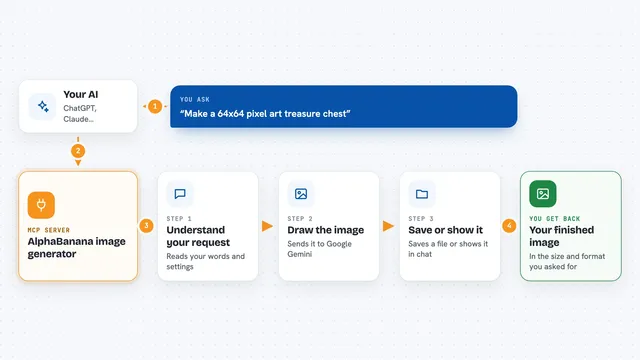
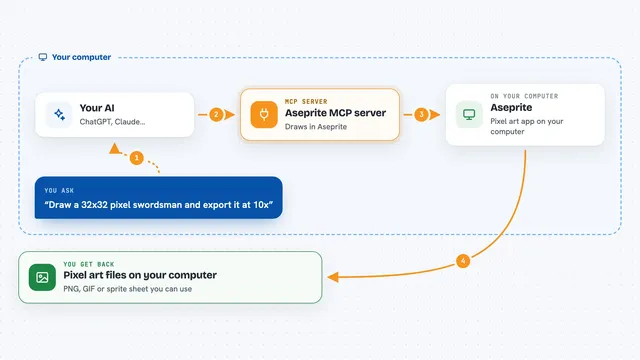
You type a request, like make me a picture of a cat on a skateboard. Your AI sends that request to StudioMCPHub. StudioMCPHub does the actual work, like generating the image or removing a background. Then it sends the finished picture or the information back, and your AI shows it to you. Some tools are free, and some cost a small amount per use.
 Click to zoom
What you can do with it
- Create a brand new image from a text description
- Make an existing image bigger and sharper
- Remove the background from a photo
- Turn an image into a print-ready PDF or a vector file
- Search over 53,000 museum artworks by artist, period, or style
- Add hidden watermark and metadata to your images
- Check whether an image matches something already registered
Try asking your AI
- “Make me a picture of a cozy reading nook in watercolor style”
- “Upscale this logo so it looks sharp on a big poster”
- “Remove the background from this product photo”
- “Find me public domain paintings of the sea from the 1800s”
What it gives back to you
You get back the thing you asked for: a new image, an edited image, a file like a PDF or SVG, or a list of artworks with details. For searches, you get a tidy list with titles, artists, and links. For changes, your AI tells you what it did and shows the result. Everything appears right in your chat.
Before you start
What you need
- An AI app that supports MCP servers, like Cursor or Claude Desktop
- An internet connection
- A way to pay for the paid tools, like a card or a small crypto wallet (some tools are free)
Good to know
Some tools cost money each time you use them, so check the price before running something expensive like permanent storage or NFT minting.
Install it with your AI
Add StudioMCPHub MCP server to your AI, no technical skills needed
You don't install anything by hand. You copy one prompt, paste it into an AI that can work on your computer, and it checks, installs and connects the server for you, asking you when it needs something.
Sign in to get the install prompt
Members get a ready-made prompt that lets the Claude desktop app check StudioMCPHub MCP server, install it and connect it for them, step by step. You don't need any technical skills: you copy, paste and answer a few questions. Your connected AI can also find and install any of the 4,609 MCP servers here for you.
Who it's for
Designers, marketers, print and packaging people, artists, and anyone who needs quick image help without learning image software.