MCP server · Productivity
WeCom Group Bot MCP server
by gotoolkits
Let your AI post text, markdown, images, and news cards into a WeCom group chat for you.

This is a small helper that lets your AI send messages into a WeCom (WeChat Work) group chat through a group robot. You just tell your AI what to say, and it posts it for you. It is handy if your team lives in WeCom and you want quick updates without opening the app yourself.
What is an MCP server? The 30-second version
On its own, your AI can only chat with you. An MCP server is a small helper program that gives your AI one new skill or one new connection. This helper connects your AI to a WeCom group robot, so the AI can drop a message into your team's group chat when you ask. You stay in the chat with your AI, and the message shows up in WeCom.
What this MCP server does
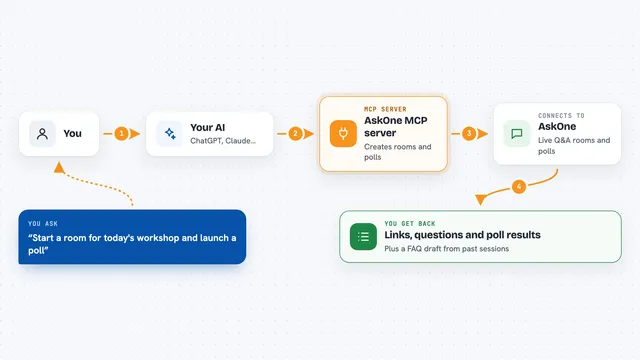
You ask your AI to send something to a WeCom group. The AI passes that request to this helper. The helper talks to your WeCom group robot using a web address and a secret key you set up. The robot then posts the message into the group chat. You get a short confirmation back in your chat with the AI.
 Click to zoom
What you can do with it
- Send a plain text message to a WeCom group
- Send a markdown formatted message
- Send an image message
- Send a news card with a title, description, link, and picture
- Send a template card message
- Upload a file to WeCom
Try asking your AI
- “Send a text message to my WeCom group saying the standup is moved to 10am”
- “Post a markdown message to WeCom with a heading that says Weekly Update and a short summary below”
- “Send a news card to WeCom with the title Project Launch, a short description, and this link”
- “Upload this file to WeCom”
What it gives back to you
You get a short reply in your chat with the AI telling you whether the message went out. The actual message appears in your WeCom group chat, not in the AI chat. If something is wrong, like a bad key, you get an error message instead.
Before you start
What you need
- A WeCom (WeChat Work) account with a group robot set up in the group you want to post to
- The webhook key from that group robot (a long code WeCom gives you when you create the robot)
- The Claude desktop app or another AI app that supports MCP servers
Good to know
Anyone with your webhook key can post into that group chat, so keep the key private and only share it with people you trust.
Install it with your AI
Add WeCom Group Bot MCP server to your AI, no technical skills needed
You don't install anything by hand. You copy one prompt, paste it into an AI that can work on your computer, and it checks, installs and connects the server for you, asking you when it needs something.
Sign in to get the install prompt
Members get a ready-made prompt that lets the Claude desktop app check WeCom Group Bot MCP server, install it and connect it for them, step by step. You don't need any technical skills: you copy, paste and answer a few questions. Your connected AI can also find and install any of the 4,609 MCP servers here for you.
Who it's for
Teams and office workers who use WeCom for group chat and want their AI to post updates, links, or files for them.