MCP server · Productivity
TickTick MCP server
by jen6
Let your AI read, add, update and complete your TickTick tasks for you.

This is a small helper that connects your AI assistant to your TickTick account. Once it is set up, you can just ask your AI things like what is due today, and it will look it up in TickTick for you. It is handy if you live in your to-do list and want to stop switching between apps.
What is an MCP server? The 30-second version
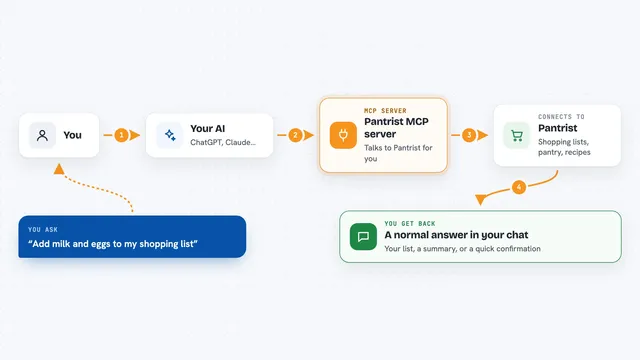
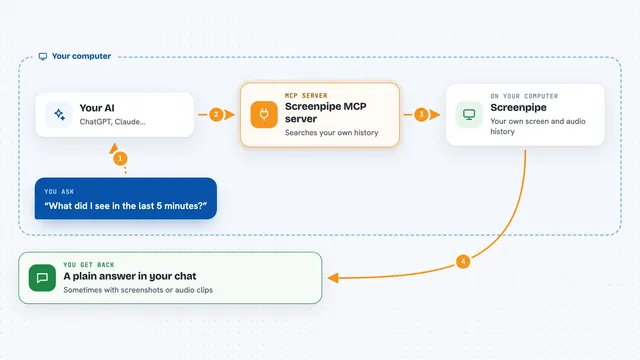
On its own, your AI can only chat. It cannot see your to-do list or change anything in it. An MCP server is a small helper program that gives your AI one new skill, and here that skill is talking to TickTick. So when you ask about your tasks, your AI passes the question to this helper, the helper asks TickTick, and the answer comes back to you in the chat.
What this MCP server does
You ask your AI something about your tasks, like what is due today or what is high priority. Your AI sends that request to this helper program. The helper logs into TickTick on your behalf and looks up, adds, changes or completes the tasks you asked about. Then the result comes back into the chat as a list or a short confirmation. You never have to open TickTick yourself unless you want to.
 Click to zoom
What you can do with it
- See all your uncompleted tasks
- Add a new task with a due date and priority
- Mark a task as done
- Move a task to a different project
- Filter tasks by project, tag, priority or due date
- Turn one task into a subtask of another
- List your projects and tags
Try asking your AI
- “What tasks are due today in TickTick?”
- “Add a task called Send invoice, high priority, due Friday”
- “Show me all my completed tasks from last week”
- “Move the task about the budget report to the Work project”
What it gives back to you
You get answers in plain chat text. Usually that is a list of tasks with their names, dates and priorities, or a short confirmation like the task was created or marked done. When you ask for completed tasks in a date range, you get that list back. It does not send you files, just readable text in the conversation.
Before you start
What you need
- A TickTick account
- Python 3.10 or newer on the machine that runs it
- A Client ID and Client Secret from the TickTick developer site (free to create, they act like a username and password for apps)
- Your TickTick login email and password
Good to know
It can create, change, move and delete tasks in your real TickTick account, so check what your AI is about to do before you say yes.
Install it with your AI
Add TickTick MCP server to your AI, no technical skills needed
You don't install anything by hand. You copy one prompt, paste it into an AI that can work on your computer, and it checks, installs and connects the server for you, asking you when it needs something.
Sign in to get the install prompt
Members get a ready-made prompt that lets the Claude desktop app check TickTick MCP server, install it and connect it for them, step by step. You don't need any technical skills: you copy, paste and answer a few questions. Your connected AI can also find and install any of the 4,609 MCP servers here for you.
Who it's for
People who plan their day in TickTick and want their AI assistant to read and update that list for them.