MCP server · Productivity
Slack MCP server
by korotovsky
Lets your AI read, search, and post in your Slack channels, threads, and DMs for you.

This is a small helper that connects your AI assistant to your Slack workspace. Once it is set up, you can ask your AI to find messages, summarize a busy channel, or check your unread chats, and it will go look for you. It is handy for anyone who spends a lot of the day in Slack and wants quick answers without scrolling.
What is an MCP server? The 30-second version
On its own, your AI can only chat with you. An MCP server is a small helper program that gives your AI a new skill or a connection to an app. This one connects your AI to Slack, so it can look things up and do things there when you ask. Think of it as giving your assistant a key to your workspace, so it can read channels and reply for you.
What this MCP server does
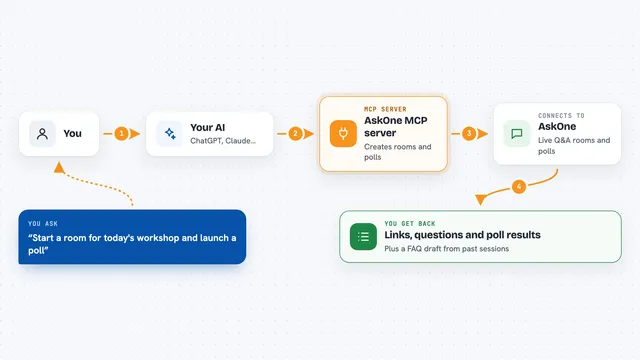
You ask your AI something about Slack, like what happened in a channel today. The AI passes your request to this helper. The helper talks to Slack and pulls back the messages, threads, or user details you asked for. Then the AI turns that into a plain answer in your chat window. If you allow it, the helper can also post messages or add reactions for you.
 Click to zoom
What you can do with it
- Read the recent history of any channel or direct message
- Pull a full thread of replies under a message
- Search messages by keyword, person, or date
- List your channels and find one by name like #general
- Check your unread messages across channels
- Look up a coworker by name or email
- Post a message or add an emoji reaction (off by default)
Try asking your AI
- “What were the main points in #marketing this week?”
- “Find any messages from Sarah about the budget last month”
- “Summarize the unread messages in my DMs”
- “Show me the thread under the latest message in #general”
What it gives back to you
You get answers in plain language, right in your chat window. That might be a short summary of a channel, a list of matching messages, or details about a person like their name and job title. If you asked it to post or react, it tells you that the change was made.
Before you start
What you need
- A Slack account in the workspace you want to connect
- Slack access details (the setup guide walks you through getting them)
- The Claude desktop app or another AI app that supports MCP servers
Good to know
It can read your private channels and DMs, and if you turn on posting it can send messages and reactions as you, so only connect it if you are comfortable with that.
Install it with your AI
Add Slack MCP server to your AI, no technical skills needed
You don't install anything by hand. You copy one prompt, paste it into an AI that can work on your computer, and it checks, installs and connects the server for you, asking you when it needs something.
Sign in to get the install prompt
Members get a ready-made prompt that lets the Claude desktop app check Slack MCP server, install it and connect it for them, step by step. You don't need any technical skills: you copy, paste and answer a few questions. Your connected AI can also find and install any of the 4,361 MCP servers here for you.
Who it's for
Anyone who works in Slack all day, like team leads, project managers, support staff, and busy office workers who want fast answers without scrolling.