MCP server · Productivity
Framedeck MCP server
by Lukaris
Let your AI manage your Framedeck content pipeline: ideas, productions, stages, cards and checklists.
This is a small helper that connects your AI assistant to Framedeck, a tool for planning content like YouTube videos, Instagram posts, TikToks and podcasts. Once it is connected, you can just talk to your AI about your ideas and tasks, and it will update your Framedeck boards for you. It is handy for creators and small teams who plan a lot of content and want to skip the clicking.
What is an MCP server? The 30-second version
On its own, your AI can only chat. An MCP server is a small helper program that gives your AI a new skill or a connection to an app. This one connects your AI to Framedeck, so it can look at your productions and cards, add new ones, move them along, and answer questions about what is due. You still talk to your AI the same way. It just quietly does the Framedeck work in the background.
What this MCP server does
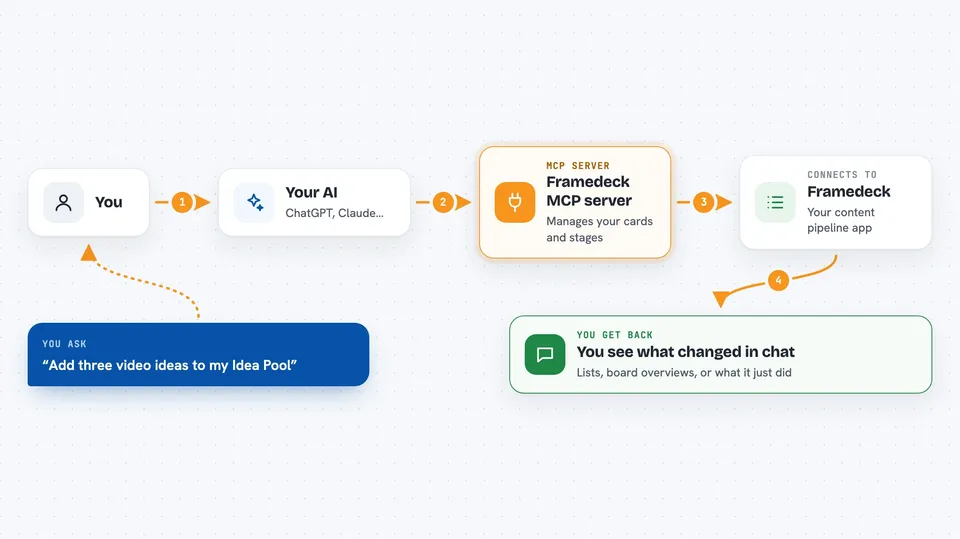
You ask your AI something in normal words, like adding three video ideas or asking what is overdue. Your AI passes that request to this helper. The helper talks to Framedeck using your API key and does the work: it creates cards, moves them between stages, adds subtasks, or pulls a summary. Then your AI tells you what happened in the chat, in plain language.
 Click to zoom
What you can do with it
- Add several content ideas at once to your Idea Pool
- Turn a ready idea into a full production with stages
- Break a video or episode into subtasks and check them off
- Move cards between stages like Scripting, Filming or Published
- Ask what is overdue or what is assigned to you
- Search your cards by keyword
- Add comments, labels and due dates to cards
Try asking your AI
- “Add these three ideas to my Idea Pool: knife sharpening tutorial, Sony A7IV review, day-in-the-life vlog”
- “The knife sharpening one is a go, graduate it to a real production”
- “For the Sony review, add subtasks: write intro, shoot product shots, record voiceover, edit B-roll, color grade, export final”
- “How is my channel looking? Anything overdue?”
What it gives back to you
You get answers in the chat, not files. Your AI can show lists of cards, a board overview with counts per stage, overdue items, or what is assigned to you. When it changes something, like creating or moving cards, it tells you what it did. Everything stays in Framedeck, so you can open the app and see it there too.
Before you start
What you need
- A Framedeck account
- An API key from Framedeck (Settings > API Keys)
- Node.js installed on your computer if you run it locally
- An MCP-compatible AI assistant like Claude, ChatGPT, Gemini or Copilot
Good to know
Some actions can delete or archive cards and stages, so check with your AI before letting it remove anything you still need.
Install it with your AI
Add Framedeck MCP server to your AI, no technical skills needed
You don't install anything by hand. You copy one prompt, paste it into an AI that can work on your computer, and it checks, installs and connects the server for you, asking you when it needs something.
Sign in to get the install prompt
Members get a ready-made prompt that lets the Claude desktop app check Framedeck MCP server, install it and connect it for them, step by step. You don't need any technical skills: you copy, paste and answer a few questions. Your connected AI can also find and install any of the 4,361 MCP servers here for you.
Who it's for
Content creators and small production teams who plan YouTube videos, social posts or podcasts and want to manage their pipeline by talking to an AI.