MCP server · Email
MultiMail MCP server
Give your AI its own email address to read, send, and reply, with you approving what goes out.

MultiMail gives your AI assistant a real email address. It can read messages, write replies, and send new ones, but you stay in charge of what actually leaves the mailbox. It is handy if you want help with your inbox without handing an assistant the keys to your main email account.
What is an MCP server? The 30-second version
On its own, your AI can only chat with you. An MCP server is a small helper that plugs a new skill into your AI, in this case a connection to MultiMail's email service. Once it is connected, your AI can look in a mailbox, read messages, and draft or send email when you ask. You do not need to install anything for the hosted version, you just add the address and sign in.
What this MCP server does
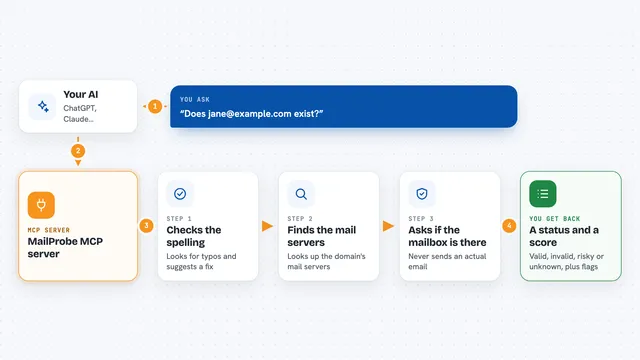
You ask your AI something like "check my inbox" or "reply to Alice". The AI passes that request to the MultiMail helper. The helper talks to the MultiMail email service, which holds your mailbox. It brings back the messages or sends the email, and shows you the result right in the chat. Depending on your settings, some outgoing mail waits for your approval first.
 Click to zoom
What you can do with it
- Read and summarize emails in your MultiMail inbox
- Draft and send new emails written in plain markdown
- Reply inside an existing conversation thread
- Search messages by sender, subject, date, or status
- Download attachments to look at or save
- Queue outgoing mail for your approval before it sends
- Keep notes on a message with tags that survive between chats
Try asking your AI
- “Check my inbox and summarize the last 5 unread emails, with sender, subject, and whether each needs action today.”
- “Find the most recent email from alice@example.com, summarize what she is asking, and draft a reply saying I will review this week. Do not send until I approve.”
- “Show the pending approval queue and tell me for each one who it goes to, the subject, and whether you think I should approve or reject.”
- “Show my current sending allowlist, then add everyone at acme.com so emails to Acme skip approval.”
What it gives back to you
You get back plain text in the chat: lists of emails, short summaries, the full body of a message, or a confirmation that something was sent or scheduled. Attachments come back as files you can save. If a message is waiting for your approval, the AI will tell you and show you what it wants to send.
Before you start
What you need
- A MultiMail account (you can create one during setup)
- For the hosted version, just an MCP client that supports remote servers, like Claude Desktop or Cursor
- For the local version, Node.js and an API key from multimail.dev
Good to know
It can send real email on your behalf, so keep the oversight mode on until you trust it, and check the pending queue before approving.
Install it with your AI
Add MultiMail MCP server to your AI, no technical skills needed
You don't install anything by hand. You copy one prompt, paste it into an AI that can work on your computer, and it checks, installs and connects the server for you, asking you when it needs something.
Sign in to get the install prompt
Members get a ready-made prompt that lets the Claude desktop app check MultiMail MCP server, install it and connect it for them, step by step. You don't need any technical skills: you copy, paste and answer a few questions. Your connected AI can also find and install any of the 4,361 MCP servers here for you.
Who it's for
Anyone who wants an AI assistant to help with email but does not want to hand over a personal or work inbox without oversight.