MCP server · Email
Proton Mail MCP server
by sethbang
Lets your AI read, search, send and organize your Proton Mail email for you.

This is a small helper that connects your AI assistant to your Proton Mail account. Once it is set up, you can ask your AI to read, search, send, reply to, and tidy up your email in plain language. It is handy if you use Proton Mail and want to save time on everyday inbox chores.
What is an MCP server? The 30-second version
On its own, your AI can only chat with you. An MCP server is a small helper program that gives your AI a new skill or a connection to an app or service. This one connects your AI to your Proton Mail account, so it can look things up and do things there when you ask. You stay in charge; the AI only acts on the requests you give it.
What this MCP server does
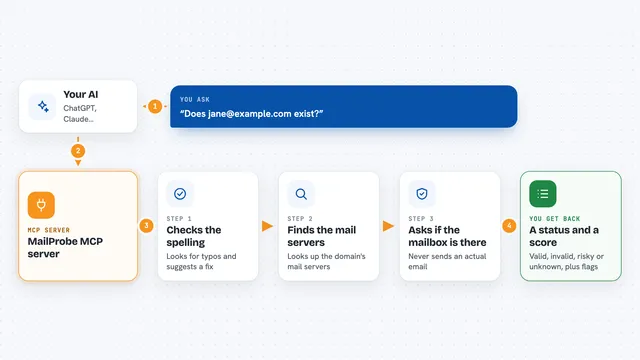
You ask your AI something about your email, like find a message or send a reply. The AI passes your request to this helper program running on your computer. The helper talks to Proton Mail through Proton Mail Bridge and your SMTP login. Then it brings the answer back into your chat, or makes the change you asked for, like moving a message or sending a reply.
 Click to zoom
What you can do with it
- Read your inbox and open individual messages
- Search email by sender, subject, date, size or attachment
- Send new email, reply, reply to all, and forward
- Move, delete and flag messages, one at a time or in bulk
- Create folders and labels, and add labels to messages
- Count messages and see your top senders
- Download attachments to your computer
Try asking your AI
- “Show me the five most recent unread emails in my inbox”
- “Find every email from my landlord in the last three months”
- “Reply to the last message from Anna and say I will send the file tomorrow”
- “Move all newsletters from this week into the Newsletters folder”
What it gives back to you
You get answers in plain chat: lists of messages with sender, subject and date, short previews, counts, and folder summaries. When it sends or changes something, it tells you what it did, like the Message-ID of a sent email or a note that a message was moved to Trash. For bulk actions you can ask for a preview first, so you see what would happen before anything changes.
Before you start
What you need
- A Proton Mail account
- An SMTP password from Proton Mail (a special password for apps, separate from your normal login)
- Proton Mail Bridge installed and running on your computer
- Node.js version 24 or newer
Good to know
It can send, move and delete real email, so start with read-only mode or preview options until you trust it.
Install it with your AI
Add Proton Mail MCP server to your AI, no technical skills needed
You don't install anything by hand. You copy one prompt, paste it into an AI that can work on your computer, and it checks, installs and connects the server for you, asking you when it needs something.
Sign in to get the install prompt
Members get a ready-made prompt that lets the Claude desktop app check Proton Mail MCP server, install it and connect it for them, step by step. You don't need any technical skills: you copy, paste and answer a few questions. Your connected AI can also find and install any of the 4,609 MCP servers here for you.
Who it's for
Proton Mail users who want their AI assistant to help with reading, searching and organizing email without leaving the chat.