MCP server · Productivity
Google Workspace MCP server
Lets your AI read and write your Gmail, Calendar, Drive, Docs, Sheets and more, all from one chat.
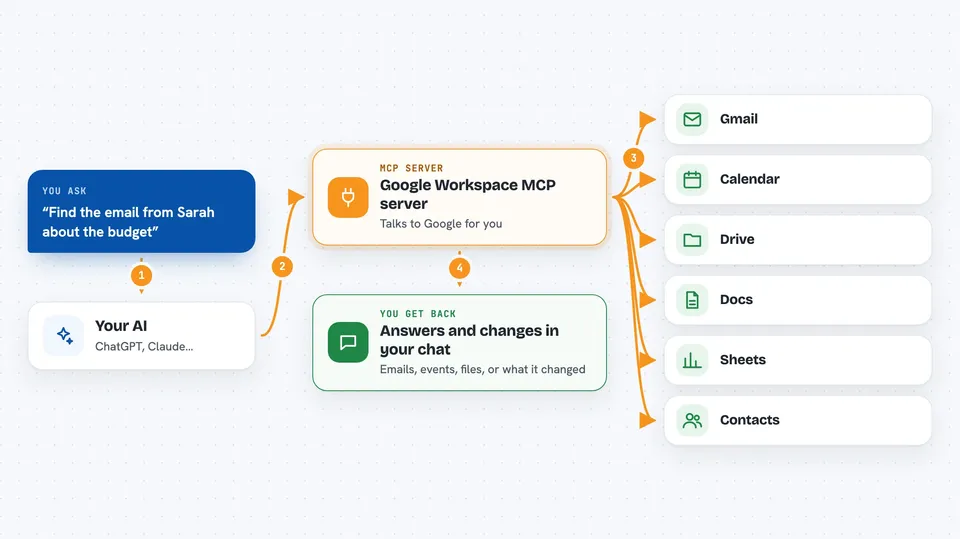
This is a helper that connects your AI assistant to your Google account: Gmail, Calendar, Drive, Docs, Sheets, Slides, Forms, Tasks, Contacts and Chat. Once it is set up, you can just ask your AI in normal words to find an email, book a meeting, or update a spreadsheet. It is handy for anyone who lives in Google Workspace all day and wants to stop clicking around.
What is an MCP server? The 30-second version
On its own, your AI can only chat with you. An MCP server is a small helper program that gives your AI a new skill or a connection to an app. This one connects your AI to Google Workspace, so it can look things up and do things there when you ask. You stay in the chat, and the helper does the clicking behind the scenes.
What this MCP server does
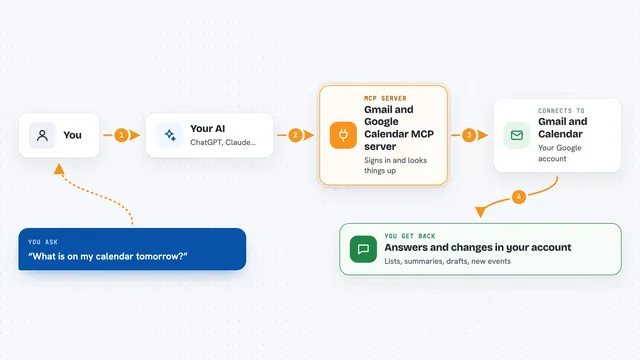
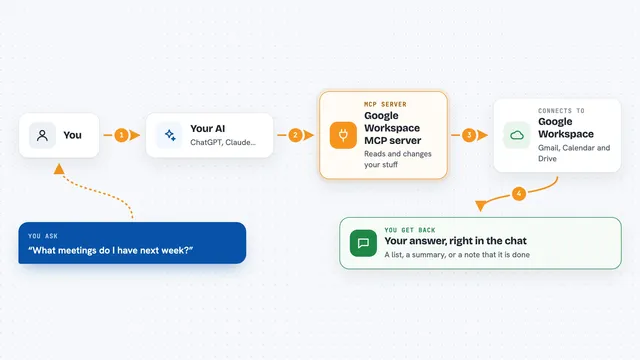
You ask your AI something in plain words, like find the email from your boss about the budget. Your AI passes that request to this helper. The helper talks to Google on your behalf, using your own Google login. Then it hands the answer back to your AI, which shows it to you in the chat. If you asked it to change something, like add a calendar event, the helper makes that change in Google for you.
 Click to zoom
What you can do with it
- Search, read, send and draft emails in Gmail
- Create, move and share files in Google Drive
- Add, edit and check events in Google Calendar
- Write and format documents in Google Docs
- Read and update cells, tables and formatting in Google Sheets
- Build slides, forms and tasks
- Look up people in your Google Contacts
Try asking your AI
- “Find the last email from Sarah about the quarterly report and summarize it”
- “Put a meeting on my calendar for Thursday at 2pm with the marketing team”
- “Add a new row to my budget spreadsheet with today's expenses”
- “Draft a reply to the latest email in my inbox from the client”
What it gives back to you
You get answers in the chat: lists of emails, summaries of documents, calendar events, or the contents of a spreadsheet. If you asked it to make a change, it tells you what it changed, like the event it added or the row it updated. You can also ask it to pull out a file or export a document, and it will hand that back to you.
Before you start
What you need
- A Google account (free Gmail or a paid Workspace account)
- An OAuth client from Google Cloud Console (a kind of app password you create once, following the setup guide)
- An MCP client that supports connectors or HTTP, like Claude Desktop, Claude Code or ChatGPT Developer Mode
- Python and uv installed on your computer if you run it yourself
Good to know
It can read, change and delete things in your Google account, so check what your AI is about to do before you say yes.
Install it with your AI
Add Google Workspace MCP server to your AI, no technical skills needed
You don't install anything by hand. You copy one prompt, paste it into an AI that can work on your computer, and it checks, installs and connects the server for you, asking you when it needs something.
Sign in to get the install prompt
Members get a ready-made prompt that lets the Claude desktop app check Google Workspace MCP server, install it and connect it for them, step by step. You don't need any technical skills: you copy, paste and answer a few questions. Your connected AI can also find and install any of the 4,361 MCP servers here for you.
Who it's for
Anyone who works in Google Workspace all day, like assistants, project managers, marketers and small teams who want their AI to handle the clicking.