MCP server · Productivity
Google Workspace MCP server
Lets your AI read and send Gmail, manage Calendar events, and work with Drive files for you.
This is a small helper program that connects your AI assistant to your own Google account, so it can work with Gmail, Google Calendar, and Google Drive. It is handy if you spend a lot of your day in email, meetings, and documents and want your AI to do the clicking for you. You set it up once, and after that you just ask in plain words.
What is an MCP server? The 30-second version
On its own, your AI can only chat. It cannot see your inbox, your calendar, or your files. An MCP server is a small helper program that gives your AI a new skill or a connection to an app. This one connects your AI to your Google Workspace account, so when you ask about an email or a meeting, the AI can actually go look and do things there for you.
What this MCP server does
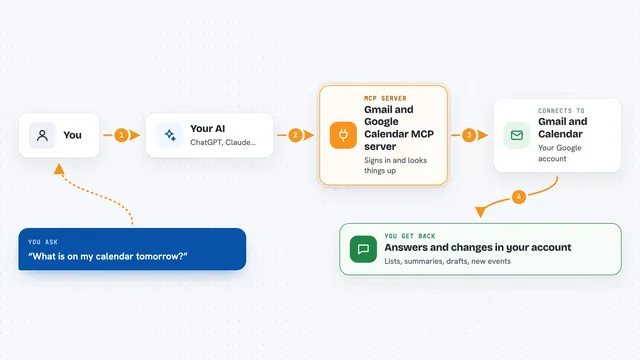
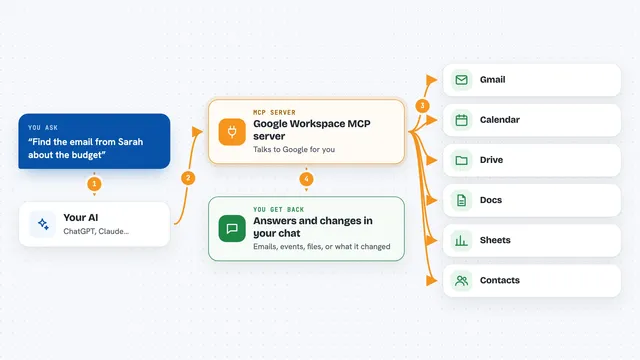
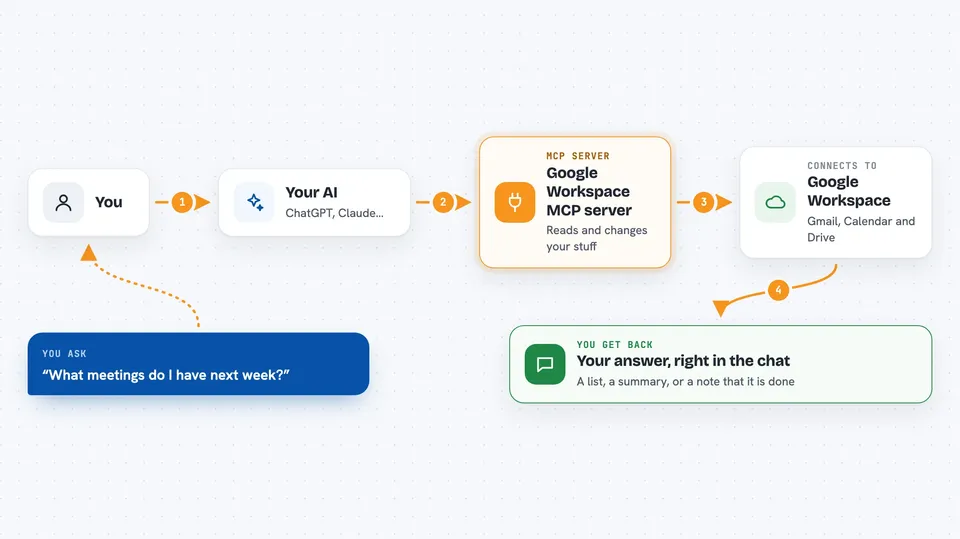
You ask your AI something in normal words, like what is on your calendar next week or to send a quick email. The AI passes your request to this helper program. The helper talks to your Google account using the permission you gave it during setup. Then it brings the answer back, or makes the change you asked for, and the AI tells you what happened in the chat.
 Click to zoom
What you can do with it
- List and search your calendar events for a date range
- Create, update, or delete calendar events
- Read your most recent email
- Search your inbox by subject line
- Compose and send new emails
- Search Google Drive for files and folders
- Create and update Google Docs
Try asking your AI
- “What meetings do I have next week?”
- “Create a calendar event for a two hour call with a customer on Tuesday at 10.”
- “Search my inbox for emails about AI news.”
- “Send an email to my supplier saying the next lot is late and I need it soon.”
What it gives back to you
You get answers in plain chat: a list of events, a summary of an email, or a note that an email was sent or an event was changed. When it creates something, like a calendar event or a Google Doc, it tells you it is done and often gives you a link or the title. For searches, it shows you the matching items it found.
Before you start
What you need
- A Google account
- A Google Cloud project with Gmail, Calendar, and Drive APIs turned on (the README walks you through this)
- The client_secrets.json file you download from Google, placed in the project folder
- Python 3.9 or newer and uv (or pip) installed, plus the Claude desktop app if you use that
Good to know
This helper can send emails, change your calendar, and delete files, so only connect it to your own account and check what your AI is about to do before you say yes.
Install it with your AI
Add Google Workspace MCP server to your AI, no technical skills needed
You don't install anything by hand. You copy one prompt, paste it into an AI that can work on your computer, and it checks, installs and connects the server for you, asking you when it needs something.
Sign in to get the install prompt
Members get a ready-made prompt that lets the Claude desktop app check Google Workspace MCP server, install it and connect it for them, step by step. You don't need any technical skills: you copy, paste and answer a few questions. Your connected AI can also find and install any of the 4,361 MCP servers here for you.
Who it's for
Anyone who lives in Gmail, Calendar, and Drive all day, like assistants, managers, founders, and small teams who want their AI to handle the busywork.