MCP server · Productivity · official
Teamwork MCP server
by teamwork · official
Connect your AI to Teamwork so it can look up projects, tasks, tickets, and messages for you.
This is the official helper from Teamwork that lets your AI assistant talk to your Teamwork account. Once it is connected, you can ask your AI about your projects, tasks, tickets, and chats, and it will go and fetch the answers for you. It is handy if you live in Teamwork all day and want to stop clicking around to find things.
What is an MCP server? The 30-second version
On its own, your AI can only chat with you using what it already knows. An MCP server is a small helper program that gives your AI a new skill or a connection to an app. This one connects your AI to Teamwork, so it can look things up or make changes there when you ask. Think of it as giving your AI a login to your Teamwork site, but only for the things you allow.
What this MCP server does
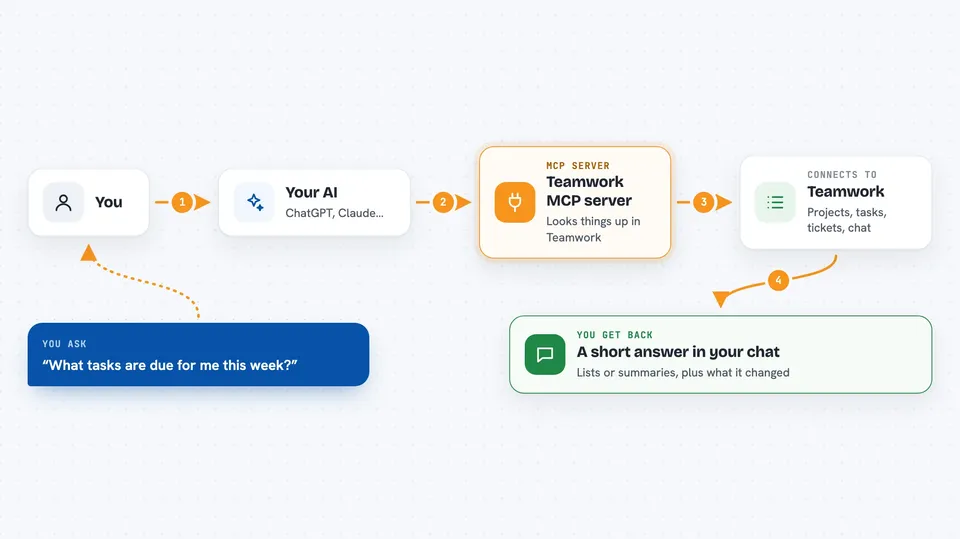
You ask your AI a question in plain words, like what tasks are due this week. Your AI sends that request to this helper program. The helper talks to Teamwork using your Teamwork credentials and asks for the right information. Teamwork sends the answer back, and your AI shows it to you in the chat. If you allow changes, the helper can also create or update things in Teamwork for you.
 Click to zoom
What you can do with it
- Look up projects and their details
- List tasks, tags, and timers
- Check tickets and customers in Teamwork Desk
- Read pages and spaces in Teamwork Spaces
- Find conversations and messages in Teamwork Chat
- Create or update items when you allow it
- Run in read-only mode if you only want lookups
Try asking your AI
- “What tasks are due for me this week in Teamwork?”
- “Show me all open tickets for the Acme customer”
- “List the pages in our Onboarding space”
- “What did the team say in the project chat yesterday?”
What it gives back to you
You get answers in the chat, usually as short lists or summaries. For example, a list of task names with due dates, or a summary of open tickets with who they are assigned to. If you asked it to create or update something, it tells you what it changed. It does not dump raw files on you; it just tells you what it found or did.
Before you start
What you need
- A Teamwork.com account
- A Teamwork API token or OAuth2 setup (a kind of password for apps; Teamwork gives you one)
- Someone to run or host the server for you, or use the cloud version
Good to know
It can create or update things in your Teamwork account if you allow it, so use read-only mode when you only want to look things up.
Install it with your AI
Add Teamwork MCP server to your AI, no technical skills needed
You don't install anything by hand. You copy one prompt, paste it into an AI that can work on your computer, and it checks, installs and connects the server for you, asking you when it needs something.
Sign in to get the install prompt
Members get a ready-made prompt that lets the Claude desktop app check Teamwork MCP server, install it and connect it for them, step by step. You don't need any technical skills: you copy, paste and answer a few questions. Your connected AI can also find and install any of the 4,361 MCP servers here for you.
Who it's for
Project managers, account managers, support teams, and anyone who uses Teamwork daily and wants quick answers without clicking around.