MCP server · Productivity
Clockify MCP server
by tracegazer
Ask your AI about your Clockify hours, projects, and reports, and log time by just typing.

This is a helper that connects your AI assistant to Clockify, the app where you track your working hours. Once it is set up, you can ask your AI questions about your time entries, projects, and reports in plain English instead of clicking around. It is handy for anyone who has to fill in timesheets, run reports, or keep an eye on where the hours go.
What is an MCP server? The 30-second version
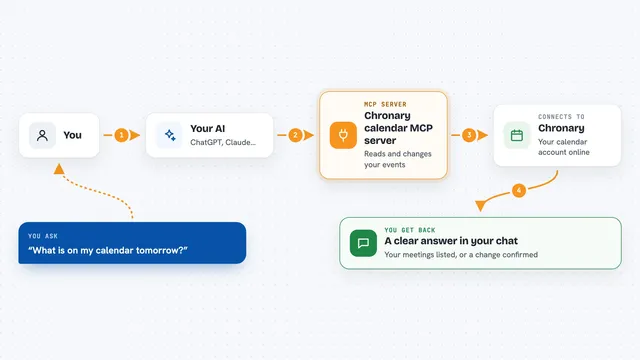
On its own, your AI can only chat with you. An MCP server is a small helper program that gives your AI a new skill or a connection to an app, and this one connects it to Clockify. So when you ask your AI something about your tracked hours, it passes the question to this helper, the helper talks to Clockify, and the answer comes back to you in the chat.
What this MCP server does
You ask your AI a question, like what you worked on last week. The AI sends that request to this helper, which logs into Clockify using your API key. The helper fetches the right data, such as time entries, projects, or a report. Then the AI turns it into a normal answer for you. If you turn on write mode, the helper can also add or change time entries for you.
 Click to zoom
What you can do with it
- See which workspaces you have in Clockify
- List your projects, clients, tasks, and tags
- Look up time entries for a person or a date range
- Generate detailed, summary, or weekly reports
- Export a report as a PDF, CSV, or Excel file
- Check time off balances and requests
- Log or edit your own hours (only if you turn on write mode)
Try asking your AI
- “What workspaces do I have in Clockify?”
- “Show me my time entries from last week.”
- “Generate a summary report for the Design project this month.”
- “Export my weekly report as a PDF.”
What it gives back to you
You get back plain answers in the chat: lists of projects or time entries, totals of hours, and short summaries. Reports come back as readable text, and if you ask for an export, you get a file saved to your computer. When write mode is on and it changes something, it tells you what it did.
Before you start
What you need
- A Clockify account
- Your Clockify API key (found in Clockify under Profile Settings, then API)
- The Claude desktop app or another app that supports MCP servers
- Python or uv installed if you are not using the one-click bundle
Good to know
If you turn on write mode, the AI can create, change, or delete real data in your Clockify account, and some deletions cannot be undone.
Install it with your AI
Add Clockify MCP server to your AI, no technical skills needed
You don't install anything by hand. You copy one prompt, paste it into an AI that can work on your computer, and it checks, installs and connects the server for you, asking you when it needs something.
Sign in to get the install prompt
Members get a ready-made prompt that lets the Claude desktop app check Clockify MCP server, install it and connect it for them, step by step. You don't need any technical skills: you copy, paste and answer a few questions. Your connected AI can also find and install any of the 4,609 MCP servers here for you.
Who it's for
Anyone who tracks their hours in Clockify, like freelancers, consultants, project managers, and team leads who need quick answers about time and projects.