MCP server · Generative art
IcoGenie MCP server
by albertnahas
Let your AI create ready-to-use SVG icons from simple text descriptions.

This is a small helper that connects your AI assistant to IcoGenie, a service that turns words into icons. You describe the icon you want, and your AI makes it for you. It is handy if you need icons for a website, an app, or a presentation and you are not a designer.
What is an MCP server? The 30-second version
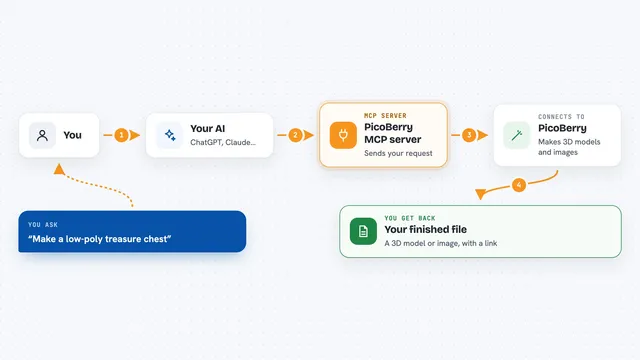
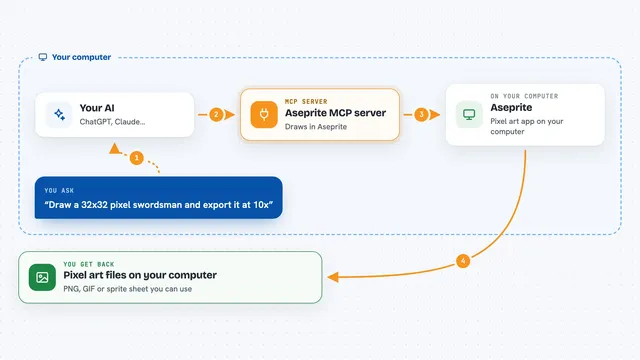
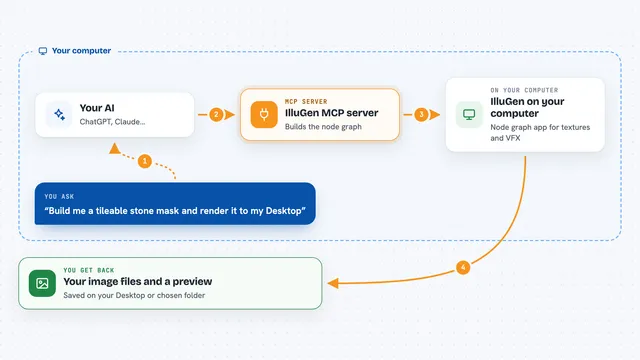
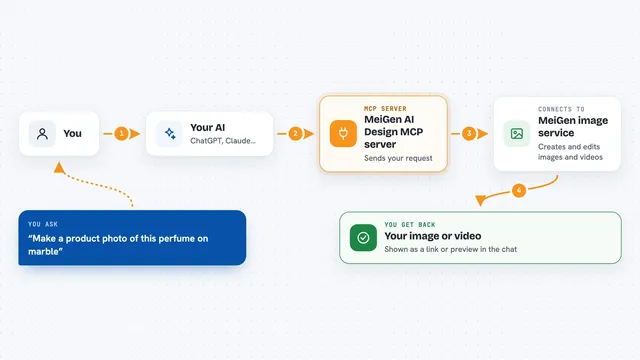
On its own, your AI can only chat with you. An MCP server is a small helper program that gives your AI a new skill or a connection to another service. This one connects your AI to IcoGenie, so when you ask for an icon, your AI can actually create it through IcoGenie and show it to you. You do not need to know how it works under the hood.
What this MCP server does
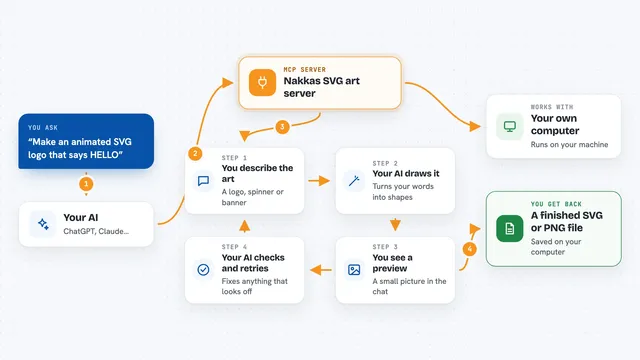
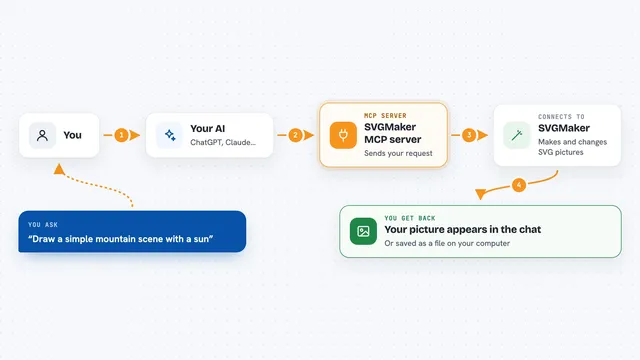
You tell your AI what kind of icon you want, like a bell or a shopping cart. Your AI sends that request to IcoGenie using this helper. IcoGenie draws the icon and sends back a preview. If you want changes, your AI can ask for new versions. When you are happy, you can download the icon as SVG and PNG files.
 Click to zoom
What you can do with it
- Create a single icon from a short description
- Try different styles like solid or outline
- Make several variations of the same icon at once
- Plan and generate a whole set of icons for an app
- Save icons to your personal library
- Download finished icons as SVG and PNG files
- Check how many credits you have left
Try asking your AI
- “Make me a simple home icon in outline style”
- “Create four variations of a notification bell icon”
- “Generate a set of eight icons for a food delivery app”
- “Download the shopping cart icon I made earlier”
What it gives back to you
Your AI shows you a preview of the icon right in the chat. It can also give you a list of several icons, a bundle plan with names and descriptions, or a download link. When you download, you get a zip file with SVG and PNG versions. It also tells you how many credits you have left after each step.
Before you start
What you need
- An IcoGenie account (you sign in through your browser the first time)
- Credits on your IcoGenie account (some actions cost credits, some are free)
- Node.js installed on your computer if you run it yourself
- The Claude desktop app or another AI tool that supports MCP servers
Good to know
Some actions use credits from your IcoGenie account, and downloading costs more than previewing, so check your balance before you download a lot of icons.
Install it with your AI
Add IcoGenie MCP server to your AI, no technical skills needed
You don't install anything by hand. You copy one prompt, paste it into an AI that can work on your computer, and it checks, installs and connects the server for you, asking you when it needs something.
Sign in to get the install prompt
Members get a ready-made prompt that lets the Claude desktop app check IcoGenie MCP server, install it and connect it for them, step by step. You don't need any technical skills: you copy, paste and answer a few questions. Your connected AI can also find and install any of the 4,361 MCP servers here for you.
Who it's for
Anyone who needs icons but is not a designer, like product managers, marketers, developers, or small business owners.