MCP server · Productivity
Todoist MCP server
by christulino
Let your AI read and manage your Todoist tasks, projects, sections, labels and comments for you.
This is a small helper that connects your AI assistant to your Todoist account. Once it is set up, you can just talk to your AI in normal words and it will look up, add, change or tick off things in Todoist for you. It is handy for anyone who lives in their to-do list and would rather type a sentence than click around.
What is an MCP server? The 30-second version
On its own, your AI can only chat. It cannot see your to-do list or change anything in it. An MCP server is a small helper program that gives your AI a new skill, in this case a connection to your Todoist account. You install it once on your own computer, and from then on your AI can look things up in Todoist and make changes there when you ask.
What this MCP server does
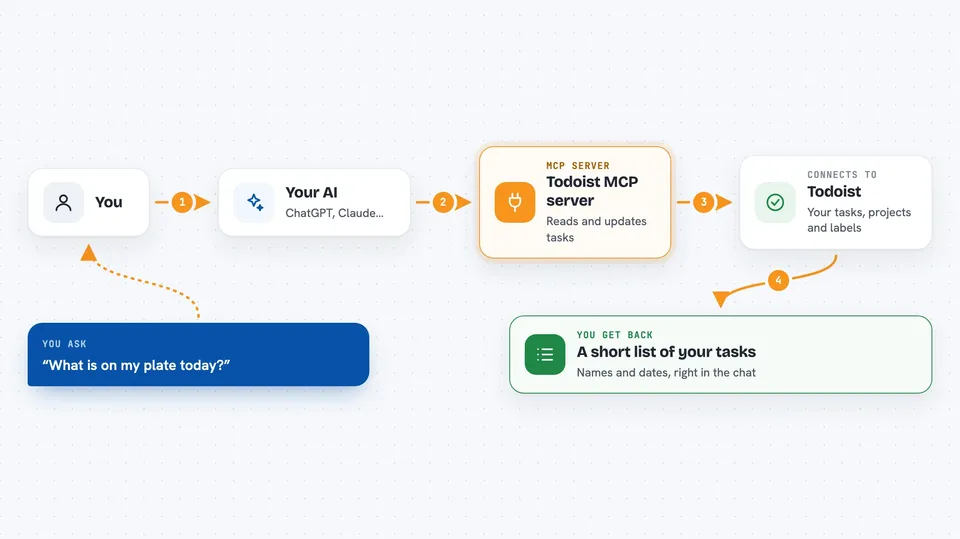
You type a normal request, like asking what is due today or asking to add a task. Your AI reads that request and decides which action to use. It passes the request to this helper, which talks directly to Todoist using your account. Todoist sends back the answer, and the helper hands it to your AI, which explains it to you in the chat. If you asked for a change, the change is made in your Todoist right away.
 Click to zoom
What you can do with it
- List your tasks, filtered by things like today, overdue, priority or project
- Add a new task with a due date written in plain words like tomorrow or every Monday
- Mark a task as done, reopen it, or delete it
- Create, rename and delete projects, sections and labels
- Add, edit and delete comments on a task or project
- Look up completed tasks and reminders if you have a Todoist Pro plan
Try asking your AI
- “What is on my plate today?”
- “Add a task to call the dentist next Tuesday”
- “Show me everything overdue”
- “Create a project called Home Renovation”
What it gives back to you
You get answers in plain chat text. For a question like what is due today, your AI gives you a short list of tasks with their names and dates. When you ask it to add, change or complete something, it tells you what it did. For bigger things like a list of projects, it may show a simple list or table.
Before you start
What you need
- A Todoist account (the free plan works)
- Your Todoist API token, which you copy from Todoist under Settings, then Integrations, then Developer
- Node.js 18 or newer installed on your computer
- The Claude desktop app, or Claude Code, to add the server to
Good to know
It can change or delete things in your Todoist, so be careful with requests like delete this project, which also removes all tasks inside it.
Install it with your AI
Add Todoist MCP server to your AI, no technical skills needed
You don't install anything by hand. You copy one prompt, paste it into an AI that can work on your computer, and it checks, installs and connects the server for you, asking you when it needs something.
Sign in to get the install prompt
Members get a ready-made prompt that lets the Claude desktop app check Todoist MCP server, install it and connect it for them, step by step. You don't need any technical skills: you copy, paste and answer a few questions. Your connected AI can also find and install any of the 4,609 MCP servers here for you.
Who it's for
Anyone who uses Todoist daily and wants to manage tasks by talking to their AI instead of clicking around, especially busy office workers and people juggling many projects.