MCP server · Email
Outlook Local MCP server
by desek
Lets your AI read your Outlook calendar and mail, and write draft emails for you.
This is a small helper program that connects your AI assistant to your Microsoft Outlook account. Once it is set up, you can ask your AI things like what is on your calendar today or what emails came in this morning, without opening Outlook yourself. It is handy for anyone who lives in Outlook all day and wants to save a few clicks.
What is an MCP server? The 30-second version
On its own, your AI can only chat with you. An MCP server is a small helper program that gives your AI a new skill or a connection to an app. This one connects your AI to Microsoft Outlook through Microsoft's own service (called Graph), so your AI can look at your calendar and mail and do small things there when you ask. It runs on your own computer, and it keeps your login details in your computer's secure keychain.
What this MCP server does
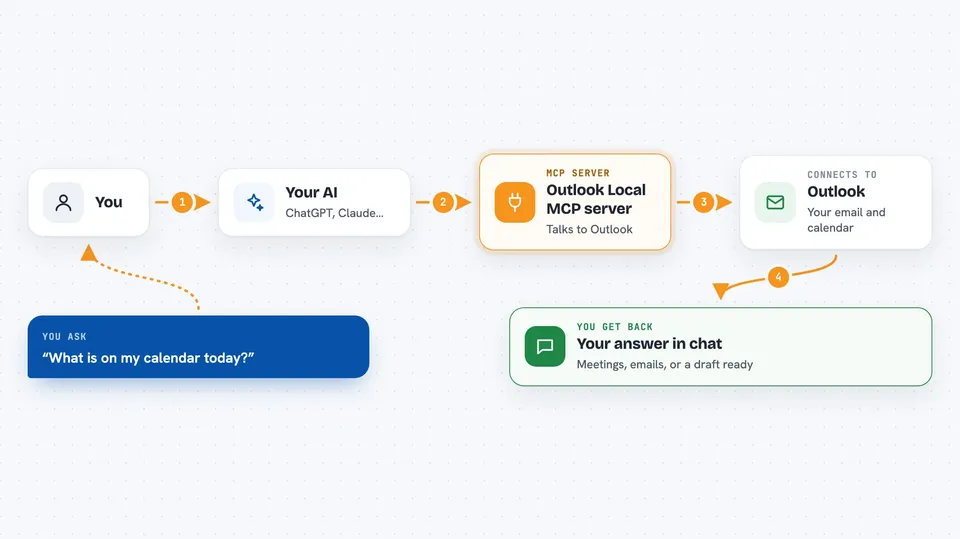
You ask your AI something about your Outlook. Your AI passes that request to this helper program. The helper talks to Microsoft's Outlook service using your account, and brings back the answer. Then your AI shows it to you in plain words in the chat. For example, you ask what is on your calendar tomorrow, and you get a short list of meetings with times.
 Click to zoom
What you can do with it
- List your calendar events for a day or a range of days
- Read your email folders and messages
- Search or filter mail by folder
- Write a draft email for you to review and send yourself
- Check which Outlook accounts are connected
- Check the status of the helper program itself
Try asking your AI
- “What is on my calendar today?”
- “Show me the unread emails in my inbox from this morning.”
- “Draft a short reply to the latest email from my manager.”
- “List my mail folders.”
What it gives back to you
You get answers written in the chat, like a list of meetings with times, or a list of emails with sender and subject. If you ask it to draft an email, it creates the draft in your Outlook so you can open it and send it yourself. It also tells you which accounts are connected and whether the helper is working.
Before you start
What you need
- A Microsoft 365 or Outlook work account
- Permission from your organisation to connect apps to Outlook (an admin may need to approve it)
- The Claude desktop app or Claude Code
- One of: the Go tool, Docker, or the ready-made Claude Desktop extension file
Good to know
It can read your private calendar and email and create drafts in your mailbox, so only connect accounts you are comfortable letting your AI see.
Install it with your AI
Add Outlook Local MCP server to your AI, no technical skills needed
You don't install anything by hand. You copy one prompt, paste it into an AI that can work on your computer, and it checks, installs and connects the server for you, asking you when it needs something.
Sign in to get the install prompt
Members get a ready-made prompt that lets the Claude desktop app check Outlook Local MCP server, install it and connect it for them, step by step. You don't need any technical skills: you copy, paste and answer a few questions. Your connected AI can also find and install any of the 4,361 MCP servers here for you.
Who it's for
Office workers who use Microsoft Outlook every day and want their AI to check their calendar and mail for them.