MCP server · Email
Outlook MCP server
by dockndevai
Lets your AI read, search, draft and send Outlook email and browse your OneDrive files for you.
This is a small helper that connects your AI assistant to your Microsoft Outlook mailbox and your OneDrive files. Once it is set up, you can ask your AI things like "what did Sarah email me about the budget?" and it will actually go and look. It is handy for anyone who lives in Outlook all day and wants to stop clicking around.
What is an MCP server? The 30-second version
On its own, your AI can only chat with you. It cannot see your inbox or your files. An MCP server is a small helper program that gives your AI a new skill, and in this case the skill is talking to Outlook and OneDrive. You connect it once, sign in through your browser, and after that your AI can look things up and do things in your mailbox when you ask it to.
What this MCP server does
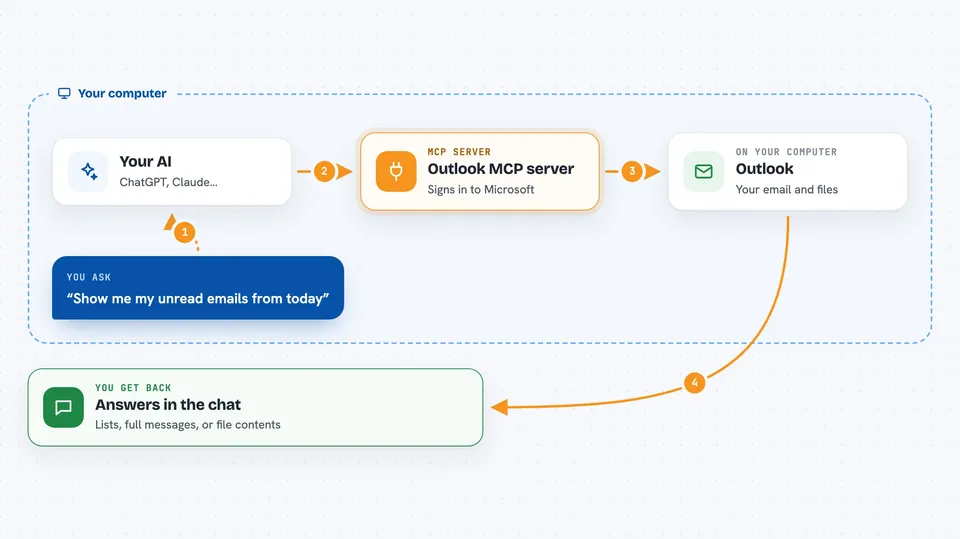
You ask your AI a question about your email, like whether a certain message arrived. The AI passes that request to this helper program. The helper signs in to Microsoft on your behalf and asks Outlook or OneDrive for the answer. Then it hands the result back to your AI, which explains it to you in the chat. For actions like sending or deleting, it can pause and ask you to confirm first.
 Click to zoom
What you can do with it
- List your mail folders and see unread counts
- Search across your whole mailbox for a word or phrase
- Read a specific message with its full body and recipients
- See who is in your contacts
- Prepare a draft email without sending it
- Send, reply to or forward an email (with your approval)
- Browse, search and download files in your OneDrive
Try asking your AI
- “Show me my unread emails from today”
- “Search my mailbox for anything about the Johnson contract”
- “Draft a short reply to the last email from my manager saying I will send the report tomorrow”
- “Find the file called Q3 budget in my OneDrive and show me what is in it”
What it gives back to you
You get plain answers in the chat: lists of messages with sender, subject and date, the full text of a message, folder names with counts, or the contents of a OneDrive file. When it creates a draft or moves a message, it tells you what it did. If it sends or deletes something, it asks you first and then confirms the result.
Before you start
What you need
- The Claude desktop app or another AI app that supports MCP servers
- Node.js installed on your computer (the free program that runs this helper)
- A Microsoft work or school account with Outlook mail
- An app registration in Microsoft Entra (Azure AD); the README explains how to create one and gives you a client ID
Good to know
It can send, move and delete email and OneDrive files, so keep it in read-only mode until you trust it, and turn on the send and delete switches only when you really need them.
Install it with your AI
Add Outlook MCP server to your AI, no technical skills needed
You don't install anything by hand. You copy one prompt, paste it into an AI that can work on your computer, and it checks, installs and connects the server for you, asking you when it needs something.
Sign in to get the install prompt
Members get a ready-made prompt that lets the Claude desktop app check Outlook MCP server, install it and connect it for them, step by step. You don't need any technical skills: you copy, paste and answer a few questions. Your connected AI can also find and install any of the 4,609 MCP servers here for you.
Who it's for
Office workers who spend their day in Outlook and OneDrive and want their AI assistant to handle the looking-up and drafting for them.