MCP server · Productivity
Microsoft Graph MCP server
by nitin27may
Lets your AI read your Outlook mail and calendar, Teams chats, files and notes inside Microsoft 365.

This is a small helper that connects your AI assistant to your Microsoft 365 account. Once it is set up, you can ask your AI about your mail, meetings, Teams chats, OneDrive files and more, and it goes and looks things up for you. It is handy if you spend your day inside Outlook, Teams and SharePoint and want an assistant that can actually see them.
What is an MCP server? The 30-second version
On its own, your AI can only chat with you. It cannot open your mailbox or check your calendar. An MCP server is a small helper program that gives your AI a new skill, in this case a connection to Microsoft 365 through something called Microsoft Graph (Microsoft's own way for apps to talk to mail, calendar, files and Teams). You install this helper once, sign in with your normal Microsoft account, and from then on your AI can look things up in Microsoft 365 when you ask.
What this MCP server does
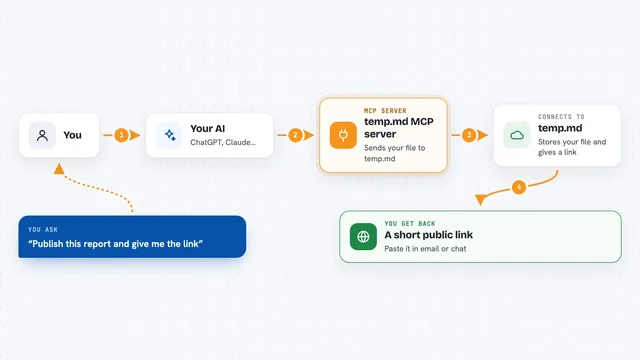
You ask your AI a question, like what is on your calendar tomorrow. Your AI passes that request to this helper. The helper signs in to Microsoft 365 as you and asks Microsoft Graph for the answer. Microsoft sends back the details, and the helper hands them to your AI, which writes them up for you in the chat. You never have to open Outlook or Teams yourself for a simple lookup.
 Click to zoom
What you can do with it
- Check your upcoming calendar events and meeting details
- Search your Outlook mail and read messages
- Read Teams chats and meeting transcripts
- Find files in OneDrive and SharePoint
- Look up people and contacts in your organisation
- See your Planner and To Do tasks
- Read your OneNote notebooks
Try asking your AI
- “What meetings do I have tomorrow morning?”
- “Find the email from Sarah about the budget last week”
- “Search my OneDrive for the Q3 planning document”
- “What did the team say in the project channel on Teams today?”
What it gives back to you
You get answers in plain language in the chat: a list of meetings with times and attendees, a summary of an email thread, links to files, or a list of tasks. If you have turned on the write tools, it can also make changes, like sending a mail or creating a calendar event, and it will tell you what it did. Everything shows up as normal chat text, no separate app to open.
Before you start
What you need
- A Microsoft 365 work or school account
- Permission from your IT team to register a small app in Microsoft Entra (they may do this for you)
- An MCP client that supports this server, such as Claude Desktop, Claude Code, VS Code, Cursor or Windsurf
- Python 3.12 or newer, and the uv tool installed
Good to know
By default it can only read, but if you turn on the write tools your AI can send mail, create events and change files in your Microsoft 365 account, so keep an eye on what you ask it to do.
Install it with your AI
Add Microsoft Graph MCP server to your AI, no technical skills needed
You don't install anything by hand. You copy one prompt, paste it into an AI that can work on your computer, and it checks, installs and connects the server for you, asking you when it needs something.
Sign in to get the install prompt
Members get a ready-made prompt that lets the Claude desktop app check Microsoft Graph MCP server, install it and connect it for them, step by step. You don't need any technical skills: you copy, paste and answer a few questions. Your connected AI can also find and install any of the 4,361 MCP servers here for you.
Who it's for
Office workers who live in Outlook, Teams, SharePoint and OneNote and want an AI assistant that can actually look things up there.