MCP server · Productivity
Coda MCP server
by orellazri
Lets your AI read, write, and organize pages and tables in your Coda documents for you.

This is a small helper that connects your AI assistant to Coda, the online workspace where teams keep documents, tables, and notes. Once it is set up, you can ask your AI in plain words to look at a page, add text, or update a table row, and it will do it in Coda for you. It is handy if you work in Coda every day and want to skip a lot of clicking around.
What is an MCP server? The 30-second version
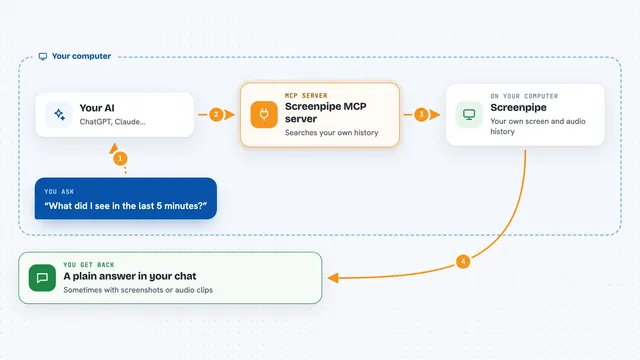
On its own, your AI can only chat. It cannot see your Coda documents or change anything there. An MCP server is a small helper program that gives your AI a new skill, and this one gives it a connection to Coda. So when you ask your AI about a page or a table in Coda, it passes your request to this helper, the helper talks to Coda, and the answer comes back to you in the chat.
What this MCP server does
You ask your AI something about your Coda workspace, like listing your documents or reading a page. The AI sends that request to this helper program. The helper logs into Coda using your personal key and does the work, such as fetching a page, creating a new one, or updating a row in a table. Then it sends the result back, and your AI shows it to you in the chat. For changes, like adding text or deleting a row, the helper makes the change directly in your Coda document.
 Click to zoom
What you can do with it
- List all Coda documents you have access to
- Read a page and get its content back as text
- Create a new page or subpage with some starting text
- Replace or add to the content of an existing page
- Rename or duplicate a page
- List tables, columns, and rows in a document
- Add, update, or delete rows in a table
Try asking your AI
- “List my Coda documents”
- “Show me the content of the page called Meeting Notes”
- “Add a new page under Projects called Launch Plan with a short outline”
- “In the Tasks table, mark the row for the budget review as done”
What it gives back to you
You get answers in the chat, like a list of your documents, the text of a page, or the rows of a table. When you ask it to change something, it tells you what it did, such as that it created a page or updated a row. The results are shown as normal chat text, so you can read them right away or ask follow-up questions.
Before you start
What you need
- A Coda account
- A Coda API key, which you can create in your Coda account settings (it works like a password for apps)
- An AI app that supports MCP servers, like Claude Desktop or Cursor
- Node.js installed on your computer if you use the npx option
Good to know
This helper can change and delete things in your Coda documents, so ask your AI to show you what it plans to do before you let it delete or replace content.
Install it with your AI
Add Coda MCP server to your AI, no technical skills needed
You don't install anything by hand. You copy one prompt, paste it into an AI that can work on your computer, and it checks, installs and connects the server for you, asking you when it needs something.
Sign in to get the install prompt
Members get a ready-made prompt that lets the Claude desktop app check Coda MCP server, install it and connect it for them, step by step. You don't need any technical skills: you copy, paste and answer a few questions. Your connected AI can also find and install any of the 4,609 MCP servers here for you.
Who it's for
People who use Coda for notes, docs, or tables at work and want their AI to help read and update them without lots of manual clicking.