MCP server · Notes
NotebookLM MCP server (secure)
Ask your NotebookLM notebooks questions and get answers taken straight from your own sources.
This is a helper that connects your AI assistant to Google NotebookLM, the tool where you upload documents and ask questions about them. Once it is set up, you can ask your AI to look things up in your notebooks, and it will fetch answers based on your own material instead of guessing. It is handy if you keep notes, reports, or research in NotebookLM and want your AI to work with them.
What is an MCP server? The 30-second version
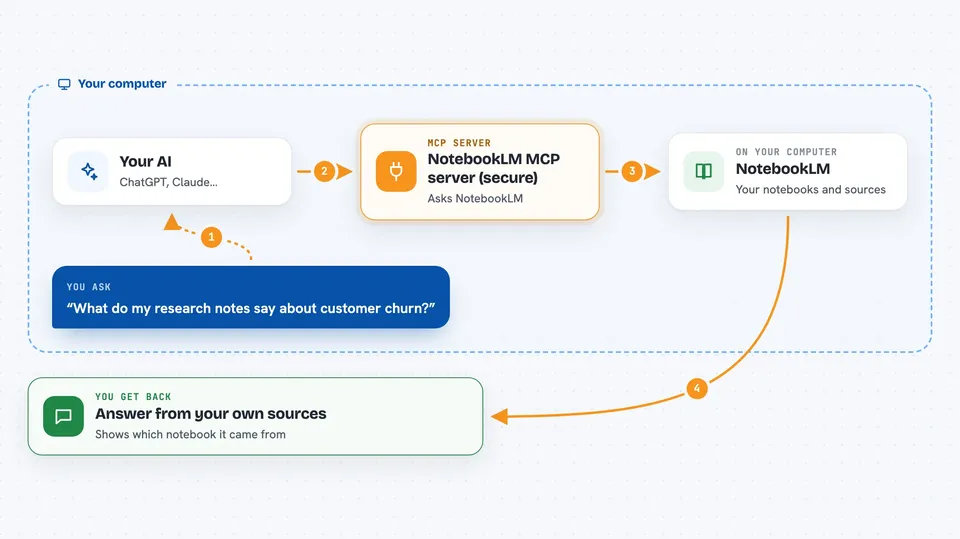
On its own, your AI can only chat with you using what it already learned. An MCP server is a small helper program that gives your AI one extra skill, here a connection to Google NotebookLM. When you ask a question, your AI passes it to this helper, the helper talks to NotebookLM, and the answer comes back to you in the chat. This particular helper also adds extra safety layers, so your login details and data are handled carefully.
What this MCP server does
You ask your AI a question about your NotebookLM notebooks. The AI sends that request to this helper program running on your computer. The helper opens a connection to NotebookLM, finds the right notebook, and asks it your question. NotebookLM answers using only the sources you uploaded, and the helper passes that answer back. You see the answer in your chat, with the notebook it came from.
 Click to zoom
What you can do with it
- Ask questions about your NotebookLM notebooks and get source-based answers
- List and manage the notebooks in your library
- Create new notebooks without clicking around in the website
- Add documents or whole folders of files to a notebook
- Generate podcast-style audio summaries of your documents
- Generate video overviews of your sources
- Pull structured data tables out of your notebook sources
Try asking your AI
- “What do my research notes say about customer churn?”
- “List all the notebooks in my library and tell me which ones I updated last.”
- “Create a new notebook called Q3 planning and add the PDFs in my Reports folder.”
- “Make a podcast-style audio summary of my onboarding notebook.”
What it gives back to you
You get answers written in plain language, based on the documents inside your notebooks, so you can see where the information came from. It can also give you lists of your notebooks and sources, status updates when audio or video is being made, and data tables in a neat format. When it creates or changes something, like a new notebook or an added source, it tells you what it did.
Before you start
What you need
- A Google account with access to NotebookLM
- The Claude desktop app or another AI app that supports MCP servers
- Node.js installed on your computer (the free program that runs this helper)
- A Gemini API key only if you want the optional research and document features
Good to know
This helper can create notebooks and add or remove sources, so it can change your NotebookLM library, and it keeps your Google login on your computer, so treat that login like a password.
Install it with your AI
Add NotebookLM MCP server (secure) to your AI, no technical skills needed
You don't install anything by hand. You copy one prompt, paste it into an AI that can work on your computer, and it checks, installs and connects the server for you, asking you when it needs something.
Sign in to get the install prompt
Members get a ready-made prompt that lets the Claude desktop app check NotebookLM MCP server (secure), install it and connect it for them, step by step. You don't need any technical skills: you copy, paste and answer a few questions. Your connected AI can also find and install any of the 4,361 MCP servers here for you.
Who it's for
People who keep research, reports, or study material in NotebookLM and want their AI assistant to answer questions from those documents.