MCP server · Productivity
Context Apps MCP server
by tubasasakunn
Lets your AI read and update your Context Todo, Idea, Journal and Timer apps for you.

Context Apps MCP connects your AI assistant to four small iPhone apps: Context Todo, Context Idea, Context Journal and Context Timer. Once connected, you can ask your AI to look at your tasks, ideas, journal notes or time records and help you work with them. It is handy if you already use those apps and want your AI to do the clicking and typing for you.
What is an MCP server? The 30-second version
On its own, your AI can only chat with you. An MCP server is a small helper that gives your AI a new skill or a connection to an app. This one connects your AI to the Context apps, so when you ask a question or give an instruction, the AI can look things up in those apps or make changes there for you. You stay in charge: the AI only does what you ask.
What this MCP server does
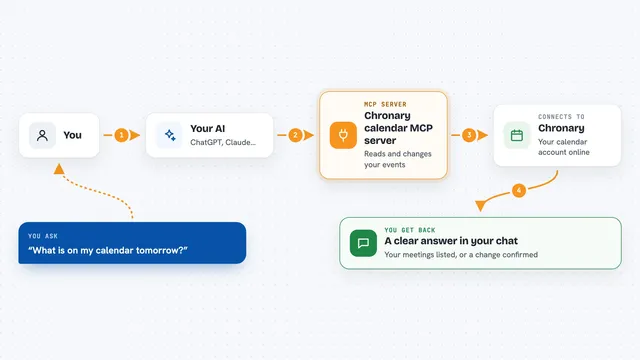
You type a request in your AI chat, like asking it to add a task or summarise your journal. The AI passes that request to this helper server. The server talks to your Context apps using your Apple ID sign-in, and finds, adds, updates or removes the items you asked about. Then it sends the result back to the AI, which explains it to you in the chat. You never have to open the apps yourself unless you want to.
 Click to zoom
What you can do with it
- Search and list your tasks, ideas, journal entries and timer records
- Add new tasks, ideas, journal notes or timer entries
- Update or edit existing items in any of the four apps
- Delete items you no longer need
- List the tags you use in your journal
- Check the status of your tasks in one view
- Ask for summaries or patterns across your journal and timer data
Try asking your AI
- “Help me organise my day with 5 tasks and 3 meetings”
- “Expand my idea about sustainable urban transportation”
- “How has my productivity changed this month compared to last”
- “Create a reflection prompt based on my recent journal entries”
What it gives back to you
You get answers in the chat: lists of tasks, ideas, journal entries or timer records, plus short summaries or insights the AI writes for you. When you ask it to add, change or delete something, it tells you what it did. You can also ask for patterns, like how your focus time changed this month. Everything shows up as normal text in your conversation.
Before you start
What you need
- An Apple ID (used to sign in)
- The Context apps installed on your iPhone or iPad (Todo, Idea, Journal, Timer as needed)
- An MCP-compatible AI app such as Claude Desktop, Cursor or Cline
- A stable internet connection
Good to know
It can add, change and delete items in your Context apps, so check before you let it remove anything important.
Install it with your AI
Add Context Apps MCP server to your AI, no technical skills needed
You don't install anything by hand. You copy one prompt, paste it into an AI that can work on your computer, and it checks, installs and connects the server for you, asking you when it needs something.
Sign in to get the install prompt
Members get a ready-made prompt that lets the Claude desktop app check Context Apps MCP server, install it and connect it for them, step by step. You don't need any technical skills: you copy, paste and answer a few questions. Your connected AI can also find and install any of the 4,361 MCP servers here for you.
Who it's for
People who already use the Context apps on iPhone and want their AI assistant to help manage tasks, ideas, journal notes and time tracking without switching apps.