MCP server · Productivity
Mattermost MCP server
by conarti
Lets your AI read channels, post messages, reply in threads and add reactions in Mattermost for you.

This is a small helper that connects your AI assistant to Mattermost, the chat app your team uses. Once it is set up, you can ask your AI to find messages, post updates, or reply in a thread, and it does that in Mattermost for you. It is handy if you spend a lot of your day in Mattermost and want to stop switching windows and copy-pasting.
What is an MCP server? The 30-second version
On its own, your AI can only chat with you. It cannot see your Mattermost channels or write anything there. An MCP server is a small helper program that gives your AI a new skill, and this one gives it a connection to your Mattermost workspace. So when you ask your AI about a channel or want it to post something, it uses this helper to talk to Mattermost and brings the result back to you.
What this MCP server does
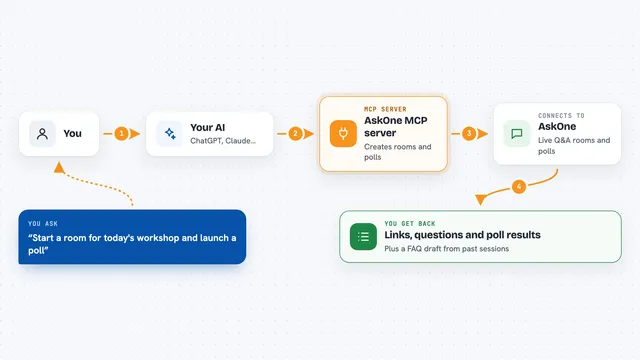
You ask your AI something about Mattermost, like what was said in a channel or to post a message. The AI passes your request to this helper. The helper signs in to your Mattermost workspace and does the action there, like reading messages, posting a reply, or adding an emoji reaction. Then it sends the result back to the AI, and the AI explains it to you in the chat. You never have to open Mattermost yourself for that task.
 Click to zoom
What you can do with it
- List the channels in your Mattermost workspace, including private ones and direct messages if you want
- Read the messages in a channel, or only the ones from a certain date range
- Post a new message to a channel
- Reply to a specific thread
- Add an emoji reaction to a message
- Get all the replies in a thread
- Edit the text of a message you wrote
- Keep an eye on chosen topics in chosen channels on a schedule
Try asking your AI
- “What are the latest messages in the town-square channel?”
- “Post a message in the team-updates channel saying the report is ready”
- “Reply to the last message in the project-x thread with thanks, I will check tomorrow”
- “Add a thumbs up reaction to the message about the new release”
- “Show me everything said in the marketing channel since Monday”
What it gives back to you
You get answers in the chat, written out in normal words. For example, a list of channel names, a summary of recent messages, or the text of a thread. When it posts or edits something, it tells you what it did and shows the message text. If a message has files attached, it also tells you the file names and sizes.
Before you start
What you need
- A Mattermost account on a workspace you can access
- The web address of your Mattermost server (it ends with /api/v4)
- Your team ID in Mattermost
- Either a personal access token from Mattermost, or you can sign in through a browser window when asked
Good to know
It can post and edit messages in your name, so check what your AI is about to send before you let it, and remember it can read private channels and direct messages if you turn that on.
Install it with your AI
Add Mattermost MCP server to your AI, no technical skills needed
You don't install anything by hand. You copy one prompt, paste it into an AI that can work on your computer, and it checks, installs and connects the server for you, asking you when it needs something.
Sign in to get the install prompt
Members get a ready-made prompt that lets the Claude desktop app check Mattermost MCP server, install it and connect it for them, step by step. You don't need any technical skills: you copy, paste and answer a few questions. Your connected AI can also find and install any of the 4,609 MCP servers here for you.
Who it's for
Anyone who works in a team that uses Mattermost and wants their AI to read and write messages there without switching apps.