MCP server · Productivity
Google Calendar MCP server
by takumi0706
Lets your AI read, create, change, and delete events in your Google Calendar for you.
This is a small helper that connects your AI assistant to your Google Calendar. Once it is set up, you can just tell your AI what is on your schedule or ask it to book something, and it will handle the calendar for you. It is handy for anyone who lives in their calendar all day and would rather type a sentence than click around.
What is an MCP server? The 30-second version
On its own, your AI can only chat. It cannot see your calendar or change anything in it. An MCP server is a small helper program that gives your AI a new skill, and this one gives it a connection to Google Calendar. So when you ask about your week or tell it to add a meeting, the AI passes that request to this helper, and the helper talks to Google Calendar for you.
What this MCP server does
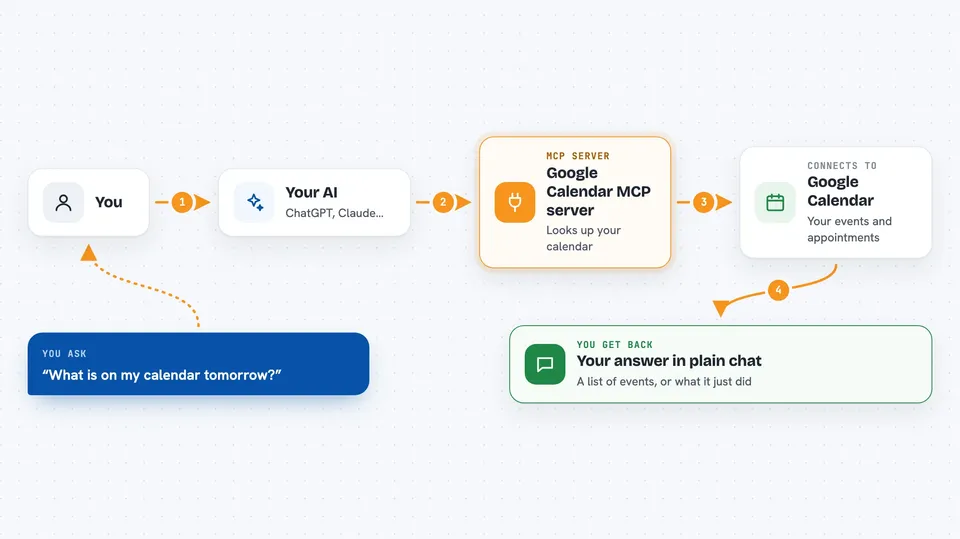
You ask your AI something in plain words, like what is on your calendar tomorrow. The AI sends that request to this helper program running on your computer. The helper signs in to your Google Calendar account and looks up the events you asked about. Then it sends the answer back, and your AI shows it to you in the chat. The same path works the other way when you ask it to create, change, or delete an event.
 Click to zoom
What you can do with it
- See what events you have coming up in a date range
- Create a new event with a title, time, place, and guests
- Change the details of an existing event
- Delete an event you no longer need
- Set a color on an event to keep things organized
- Add repeating events, like a weekly meeting
- Switch to a different Google account without restarting
Try asking your AI
- “What is on my calendar tomorrow?”
- “Add a meeting with Sam on Friday at 2pm for one hour”
- “Move my 10am call to 11am”
- “Delete the dentist appointment on the 14th”
What it gives back to you
You get answers in plain chat text. For a question, it comes back as a list of events with their titles, times, and details. When it creates, changes, or deletes something, it tells you what it did. You can also ask for a quick summary of your day or week.
Before you start
What you need
- Node.js 20 or newer installed on your computer
- A Google account with Google Calendar
- Google OAuth credentials (a client ID and secret) from the Google Cloud Console, where you also turn on the Calendar API
- The Claude desktop app, with this server added to its config file
Good to know
It can create, change, and delete real events on your calendar, so check before you say yes to a delete.
Install it with your AI
Add Google Calendar MCP server to your AI, no technical skills needed
You don't install anything by hand. You copy one prompt, paste it into an AI that can work on your computer, and it checks, installs and connects the server for you, asking you when it needs something.
Sign in to get the install prompt
Members get a ready-made prompt that lets the Claude desktop app check Google Calendar MCP server, install it and connect it for them, step by step. You don't need any technical skills: you copy, paste and answer a few questions. Your connected AI can also find and install any of the 4,361 MCP servers here for you.
Who it's for
Anyone who plans their days in Google Calendar and wants to check or change it by just typing a sentence.