MCP server · Productivity
Apple Productivity MCP server
by gambadio
Lets your AI work with Mail, Calendar, Notes, Reminders, Pages, Numbers and more on your Mac.
This is a helper that connects your AI assistant to the everyday Apple apps on your Mac, like Mail, Calendar, Reminders, Notes, Contacts, and Pages. You ask in plain words, and it reaches into those apps to look things up or make changes for you. It is handy if you live inside Apple's apps and want your AI to actually do the clicking and typing.
What is an MCP server? The 30-second version
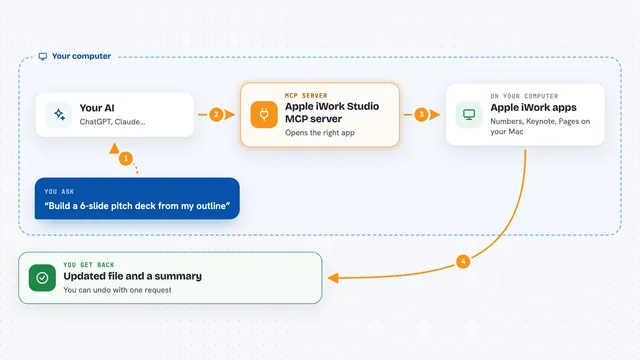
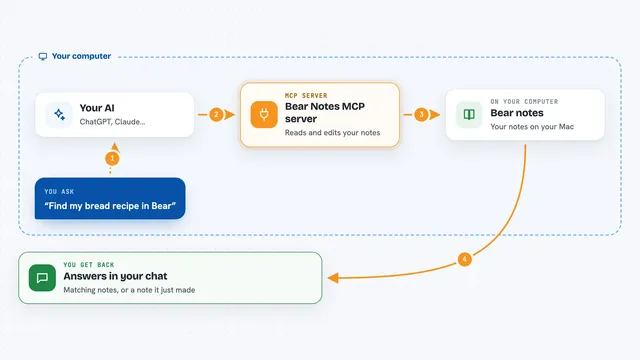
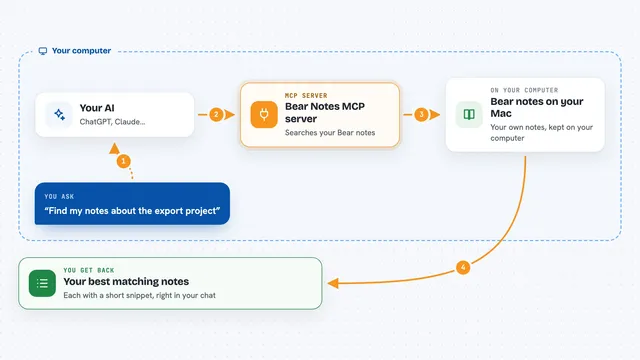
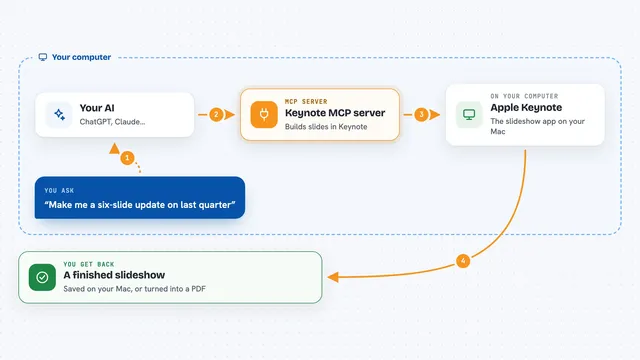
On its own, your AI can only chat. It cannot see your calendar or send an email. An MCP server is a small helper program that gives your AI a new skill or a connection to an app. This one is a helper for the Apple apps on your own Mac, so when you ask your AI something, it can pass the request to this helper, and the helper talks to Mail, Calendar, Notes or the others for you. It runs quietly in the background on your computer, and nothing is sent to an outside company.
What this MCP server does
You type a request to your AI, like finding reminders or reading a document. Your AI sends that request to this helper running on your Mac. The helper opens the right Apple app using Apple's own automation, does the lookup or change, and hands the answer back. Your AI then explains what it found or confirms what it did, right there in the chat. It covers many apps: Mail, Calendar, Reminders, Notes, Contacts, Pages, Numbers, Keynote, TextEdit, Safari, Music, Photos, Messages, files, Finder, Shortcuts, and a couple of system actions.
What you can do with it
- Search your Mail for messages from a sender and save an attachment to an allowed folder
- Find reminders by title and show their notes and due dates
- Create a Notes folder and drop your meeting summary inside it
- Read a Pages document and export a PDF next to it
- List the sheets and tables in a Numbers workbook and fill in some cells
- Add a Keynote slide with a title, body and presenter notes
- List your Photos albums and export selected items into a folder
- Show your Safari tabs and what is on the page
Try asking your AI
- “Find reminders with invoice in the title and show their notes and due dates”
- “Create a Notes folder in this account and put my meeting summary in it”
- “Read this Pages document and export a PDF beside it”
- “Find mail from this sender and save the attachment in my Documents folder”
What it gives back to you
You get answers written in the chat, drawn from your real apps. That might be a list of reminders with dates, the text of a note or document, a set of cell values, the names of your mailboxes, or a confirmation that an event, note or file was created. When it exports or saves something, it tells you where the file went. For changes, it reports what it did, so you can double check.
Before you start
What you need
- A Mac running macOS
- Node.js version 20 or newer installed on your Mac
- The Apple app you want to use, already set up and signed in (Pages, Numbers and Keynote are separate App Store downloads)
- An AI client that can run local MCP servers (like Claude Desktop, Claude Code or Codex)
- Permission for the app on your Mac under System Settings, Privacy & Security, Automation
Good to know
It can really send emails and messages, change or delete notes, events, reminders and files, so double check the target before you let it write, and read any Shortcut before allowing it.
Install it with your AI
Add Apple Productivity MCP server to your AI, no technical skills needed
You don't install anything by hand. You copy one prompt, paste it into an AI that can work on your computer, and it checks, installs and connects the server for you, asking you when it needs something.
Sign in to get the install prompt
Members get a ready-made prompt that lets the Claude desktop app check Apple Productivity MCP server, install it and connect it for them, step by step. You don't need any technical skills: you copy, paste and answer a few questions. Your connected AI can also find and install any of the 4,361 MCP servers here for you.
Who it's for
Anyone who works mostly in Apple's apps on a Mac, like admins, writers, students, or small business owners who want their AI to handle the busywork in Mail, Calendar, Notes and documents.