MCP server · Email
Gmail Manager MCP server
Let your AI search, clean, label and draft emails in your Gmail inbox for you.

This is a helper that connects your AI assistant to your Gmail account. Once it is set up, you can ask your AI in plain words to find emails, tidy up your inbox, or write a draft reply. It is handy for anyone who gets buried in newsletters, promotions and notifications.
What is an MCP server? The 30-second version
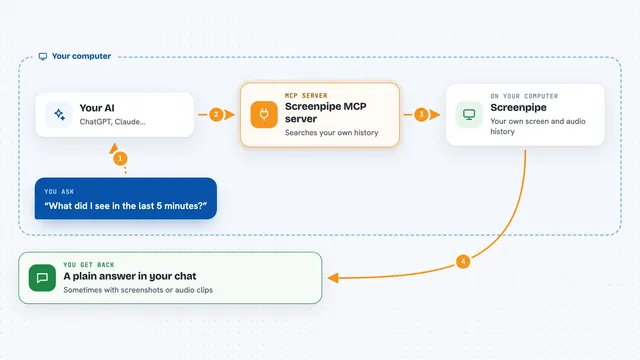
On its own, your AI can only chat. It cannot see your inbox or touch your email. An MCP server is a small helper program that gives your AI a new skill, and this one connects it to your Gmail account. So when you ask your AI to find or clean up emails, the helper is what actually talks to Gmail and brings the answer back to you.
What this MCP server does
You ask your AI something like find all newsletters from last month. Your AI passes that request to this helper. The helper talks to your Gmail account, searches for matching messages, and hands the results back. Your AI then shows you a tidy list or summary in the chat. If you ask it to clean up, it can move those emails to Trash or apply a label for you.
 Click to zoom
What you can do with it
- Search your inbox by sender, subject, date or any Gmail search phrase
- Move old newsletters, promotions and notifications to Trash in bulk
- Create labels and apply them to many emails at once
- Read the full content of a single email or a whole conversation
- Get a summary of your email patterns and how much mail you get
- Write a draft reply or a brand new draft, without sending it
- Unsubscribe from a mailing list using the sender's own link
Try asking your AI
- “Find all emails from newsletters in the last 30 days and move them to Trash”
- “Show me everything unread from my boss this week”
- “Create a label called Receipts and apply it to all emails from my bank”
- “Draft a polite reply to the last email from Sarah saying I will get back to her tomorrow”
What it gives back to you
You get back plain answers in the chat: lists of emails with sender, subject and date, short summaries of what is in your inbox, or the full text of a message you asked to read. When it changes something, like moving emails to Trash or adding a label, it tells you what it did. It can also save an attachment to a folder on your computer or to Google Drive.
Before you start
What you need
- A Google account with Gmail
- A free Google Cloud project with Gmail, Calendar and Drive turned on, and an OAuth keys file downloaded from it (the README walks you through this)
- Node.js installed on your computer
- The Claude desktop app or another AI app that supports MCP servers
Good to know
It can permanently delete emails and change your labels and filters, so read what your AI plans to do before saying yes, and keep sending turned off unless you really want the AI to send mail for you.
Install it with your AI
Add Gmail Manager MCP server to your AI, no technical skills needed
You don't install anything by hand. You copy one prompt, paste it into an AI that can work on your computer, and it checks, installs and connects the server for you, asking you when it needs something.
Sign in to get the install prompt
Members get a ready-made prompt that lets the Claude desktop app check Gmail Manager MCP server, install it and connect it for them, step by step. You don't need any technical skills: you copy, paste and answer a few questions. Your connected AI can also find and install any of the 4,361 MCP servers here for you.
Who it's for
Anyone who wants help taming a busy Gmail inbox, especially people who get a lot of newsletters, promotions or notifications and want to clean up without clicking through everything by hand.